



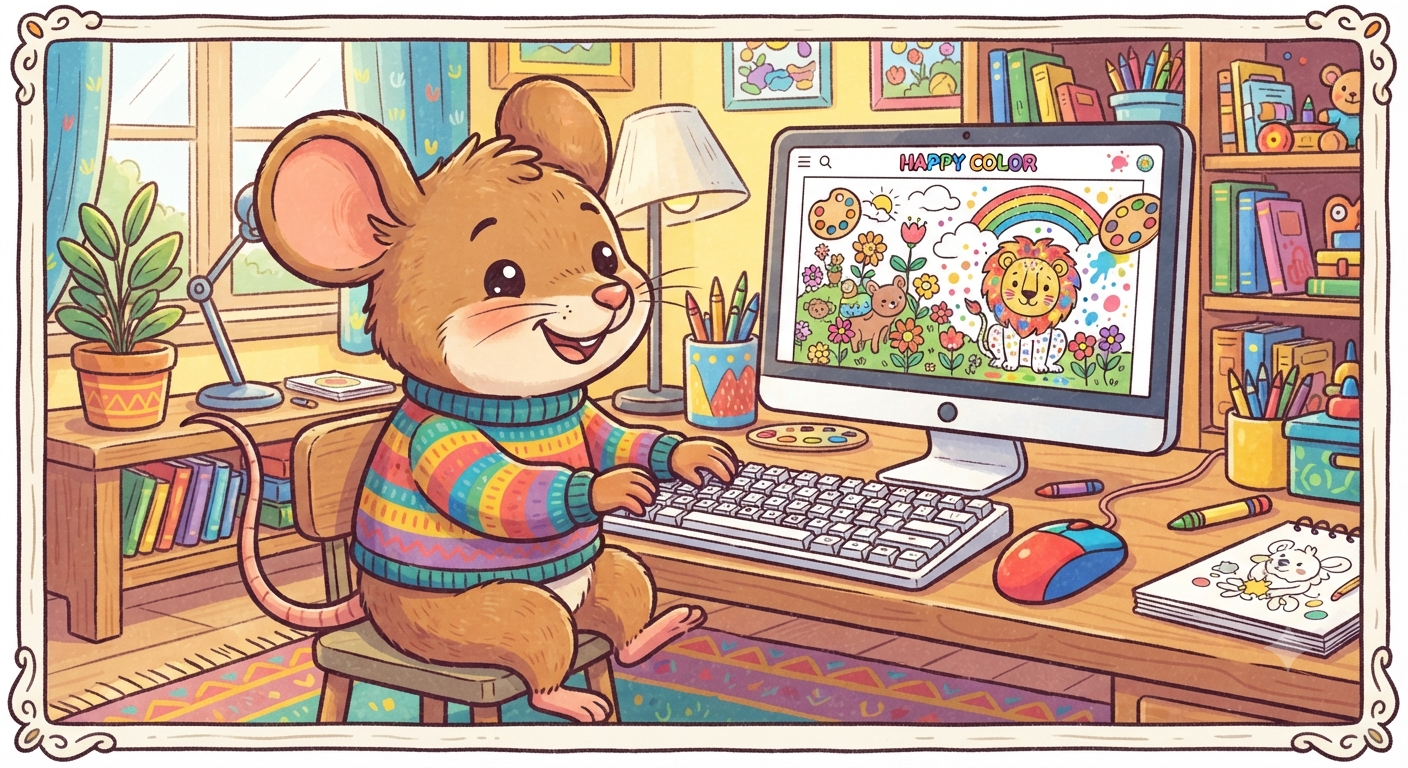
If you want to play Happy Color Coloring Book with mouse and keyboard, you are probably looking for a more comfortable way to enjoy the popular color-by-number app on a larger screen. A computer monitor makes tiny numbered areas easier to see, while a mouse can provide more precision than tapping small sections with your finger.
There is one important detail to understand first. Happy Color is primarily designed as a mobile application, and its official support information does not currently position Windows desktop computers or laptops as a directly supported platform.
That does not necessarily mean PC users have no options.
You can potentially play Happy Color Coloring Book with mouse and keyboard by running the Android version inside a compatible Android environment or emulator. The key is understanding the difference between an official Windows version and a third-party method that allows the mobile app to run on a computer.
This guide explains those options, how mouse controls work, what role the keyboard plays, what PC specifications matter, and how to avoid unreliable downloads.
Can You Play Happy Color Coloring Book With Mouse and Keyboard?
Yes, it can be technically possible to play Happy Color Coloring Book with mouse and keyboard on a PC, but it is important to understand how the setup works.
Happy Color is built primarily for touchscreen devices. On Android phones, tablets, iPhones, and iPads, you normally select colors and tap numbered areas directly on the screen.
On a computer, a mouse can imitate most of those touchscreen actions.
For example:
- Left-clicking can replace tapping the screen.
- Clicking and dragging may allow you to move around an image.
- Mouse wheel controls may assist with scrolling or zooming, depending on the software.
- Keyboard shortcuts can sometimes be assigned to navigation or zoom functions.
- Full-screen mode provides more space for detailed coloring pages.
However, Happy Color is not a traditional PC game designed around WASD keys or complex keyboard controls. The mouse is usually the most important input device.
Is There an Official Happy Color PC Version?
This is where many guides become misleading.
You may find websites advertising phrases such as:
- Happy Color for Windows
- Happy Color PC download
- Happy Color online for PC
- Happy Color desktop version
- Happy Color Windows 10 download
These terms do not automatically mean that an official native Windows application exists.
Happy Color’s official support information has stated that desktop and laptop computers are not supported in the same way as its mobile platforms. Therefore, users should be cautious when websites claim to provide an “official Happy Color EXE.”
If you want to play Happy Color Coloring Book with mouse and keyboard, using the legitimate Android app inside a reputable Android environment is generally more transparent than downloading an unknown Windows installer claiming to be Happy Color.
Always verify the developer and source before installing anything.
How to Play Happy Color Coloring Book With Mouse and Keyboard Using an Android Emulator
An Android emulator creates a virtual Android device inside Windows. Instead of installing a native Windows version of Happy Color, you install the Android application inside that virtual environment.
Several well-known Android emulators are designed to run mobile applications and games with mouse and keyboard input.
The general setup process is straightforward.
Step 1: Choose a Reputable Android Emulator
Select an established Android emulator from its official website.
Common Android gaming environments offer features such as:
- Google Play Store access
- mouse controls
- keyboard mapping
- adjustable display resolution
- full-screen mode
- hardware acceleration
- custom Android settings
Avoid downloading modified emulator installers from unofficial software repositories when the developer provides its own official download page.
Step 2: Install the Emulator
Download and install the emulator using its official installer.
During setup, you may be asked to enable hardware virtualization or allocate system resources such as RAM and processor cores.
You do not normally need an extreme gaming configuration to play Happy Color Coloring Book with mouse and keyboard because Happy Color is considerably less demanding than modern 3D games.
Step 3: Open Google Play Store
Launch the Android environment and open Google Play Store.
Search for:
Happy Color®: Color by Number
Check the developer information carefully so that you install the genuine application rather than a similarly named coloring game.
Step 4: Install Happy Color
Install the application as you normally would on an Android tablet or smartphone.
Once installation finishes, open Happy Color from the emulator’s home screen.
Step 5: Test Mouse Controls
Open a coloring page and test basic actions.
Your mouse should generally replace touchscreen input. Clicking a numbered region should behave similarly to tapping it with your finger.
Zoom behavior can vary depending on the emulator.
Some programs allow:
- Ctrl + mouse wheel
- dedicated zoom keys
- simulated pinch gestures
- custom keyboard mappings
Check the emulator’s control panel if normal scrolling does not produce the desired behavior.
How Mouse Controls Work in Happy Color
The biggest reason people want to play Happy Color Coloring Book with mouse and keyboard is precision.
Detailed illustrations can contain extremely small numbered sections. On a smartphone, your fingertip can cover the exact area you are trying to select.
A mouse pointer is much smaller.
That can make intricate artwork easier to complete.
Left Mouse Button
The left mouse button typically performs the same function as a touchscreen tap.
You can use it to:
- select colors;
- fill numbered areas;
- open menus;
- choose images;
- navigate categories.
If clicks do not align correctly with the screen, the problem may be related to emulator resolution or Windows display scaling.
Mouse Wheel
The mouse wheel may be used for navigation or zooming depending on your emulator configuration.
Because Happy Color was designed for touchscreen gestures, zooming may require an emulator-specific shortcut rather than the wheel alone.
Click and Drag
Dragging can simulate finger movement across the screen.
This is useful when you have zoomed deeply into an illustration and need to move toward another section without zooming back out.
How Useful Is the Keyboard?
The phrase play Happy Color Coloring Book with mouse and keyboard can make it sound as though the app has extensive keyboard controls.
In practice, that is rarely necessary.
Happy Color is fundamentally a point-and-click experience when adapted to desktop use.
The keyboard works best for supplementary functions.
Useful keyboard actions may include:
- Back navigation
- Zoom in
- Zoom out
- Full-screen mode
- Screenshot shortcuts
- Switching between applications
- Emulator navigation controls
Some Android emulators also allow users to assign specific screen locations to keyboard keys.
For Happy Color, however, complicated key mapping usually provides little benefit. A properly configured mouse is far more valuable.
Why Play Happy Color on a Bigger Screen?
Happy Color works perfectly well on phones and tablets, so why use a computer?
The answer is mostly comfort.
Better Visibility
Large coloring pages often contain tiny shapes hidden between larger sections.
A desktop monitor can make those details easier to identify.
This becomes particularly useful when working with:
- detailed landscapes;
- architecture;
- mandalas;
- complex animal illustrations;
- decorative patterns;
- highly detailed character artwork.
More Accurate Clicking
A mouse pointer allows relatively precise targeting.
Instead of tapping around a small section repeatedly, you can place the cursor directly over it.
More Comfortable Long Sessions
Holding a smartphone for a long coloring session can become uncomfortable.
When you play Happy Color Coloring Book with mouse and keyboard, your monitor can remain at eye level while your hands stay on the desk.
That may feel more natural for users who already spend significant time working at a computer.
Easier Multitasking
Desktop use also makes it easier to enjoy other content simultaneously.
For example, you could color while listening to:
- podcasts;
- audiobooks;
- relaxing music;
- YouTube videos;
- streaming audio.
You can keep Happy Color in one window and your media application in another.
Happy Color on PC vs. Tablet
Using Happy Color on a PC is not automatically better.
Each device offers different advantages.
PC With Mouse
A PC may be preferable when you want:
- a larger screen;
- precise cursor control;
- a fixed desk setup;
- easier multitasking;
- long coloring sessions.
Tablet
A tablet may be preferable when you want:
- native touchscreen controls;
- pinch-to-zoom gestures;
- portability;
- couch or bed use;
- no emulator configuration.
Touchscreens feel more natural because Happy Color was originally designed around tapping.
For extremely detailed pictures, however, some users may prefer the accuracy of a mouse.
PC Requirements for Happy Color
Happy Color itself is not an especially demanding application.
The emulator creates most of the additional system requirements.
For a smooth experience, a modern Windows PC should ideally have:
- 8 GB RAM or more
- SSD storage
- a reasonably recent processor
- updated graphics drivers
- hardware virtualization support
- sufficient free storage
- a stable internet connection
Older computers may still run the application, but emulator performance can vary significantly.
If your machine becomes slow when you play Happy Color Coloring Book with mouse and keyboard, lowering the emulator’s display resolution can help.
You can also reduce unnecessary background applications.
How to Improve Performance
If Happy Color feels sluggish inside an Android emulator, you usually do not need to upgrade your computer immediately.
Try a few basic adjustments first.
Lower Emulator Resolution
Running a virtual Android device at an unnecessarily high resolution increases graphics workload.
1080p is usually more than sufficient for coloring.
Close Background Applications
Web browsers with dozens of tabs, video editing software, games, and other resource-heavy applications may consume significant RAM.
Close anything you do not need.
Enable Hardware Virtualization
Many Android emulators perform better when virtualization features are enabled in the computer’s BIOS or UEFI settings.
Follow the documentation provided by your specific emulator because setup steps vary between manufacturers.
Update Graphics Drivers
Outdated drivers can cause:
- black screens;
- visual glitches;
- poor performance;
- application crashes;
- incorrect rendering.
Keeping Windows and your graphics drivers updated can resolve many emulator-related issues.
Happy Color Mouse Not Clicking Correctly: How to Fix It
One common problem when people play Happy Color Coloring Book with mouse and keyboard is incorrect click positioning.
You click one section, but the emulator registers the click somewhere else.
Several factors can cause this.
Check Windows Display Scaling
Windows may use display scaling such as 125%, 150%, or higher on high-resolution monitors.
Certain software can occasionally interpret scaled coordinates incorrectly.
Temporarily testing 100% scaling can help determine whether Windows scaling is causing the issue.
Check Emulator Resolution
Open the emulator’s display settings.
Try a standard resolution and restart the application.
Restart Happy Color
Sometimes touchscreen coordinate errors disappear after restarting the app or emulator.
Update the Emulator
If the issue appeared after a Windows update, an emulator update may already contain a compatibility fix.
Zoom Is Not Working: What Should You Do?
Zooming is extremely important because many Happy Color images contain tiny numbered areas.
On a smartphone, you would normally use two fingers.
A computer does not naturally provide the same gesture.
Emulators solve this problem differently.
Common options include:
- Ctrl + mouse wheel
- keyboard shortcuts
- dedicated zoom controls
- simulated multi-touch gestures
- customizable key mapping
Open the emulator’s keyboard or controls menu and identify the command that represents pinch-to-zoom.
Do not assume every emulator uses the same shortcut.
Happy Color Shows a Black Screen
A black screen can occur when the Android emulator’s graphics engine is incompatible with a particular graphics driver or rendering mode.
Try the following:
- restart Happy Color;
- restart the emulator;
- update graphics drivers;
- update Windows;
- update the emulator;
- switch graphics rendering modes if supported;
- lower the emulator resolution.
If other Android applications also display a black screen, the issue is probably emulator-related rather than specific to Happy Color.
Is It Safe to Download Happy Color for PC?
It depends entirely on where you download the software.
This is one of the most important considerations for users searching for Happy Color Coloring Book with mouse and keyboard.
Be cautious with websites offering files such as:
HappyColorPC.exe
or:
HappyColor-Windows-Crack.exe
A filename does not prove that software is legitimate.
Whenever possible, install Happy Color through an official app marketplace inside your Android environment rather than downloading unofficial APKs or Windows installers.
Follow these safety rules:
- download emulators from their official websites;
- install Happy Color through Google Play when possible;
- verify the developer name;
- avoid cracked applications;
- avoid modified APK files;
- avoid websites demanding unnecessary browser extensions;
- scan unfamiliar downloads before opening them.
A slightly longer setup process is better than installing untrusted software.
Can You Play Happy Color in a Browser?
Search engines often display websites offering coloring games that look similar to Happy Color.
Some may even use the words “Happy Color.”
That does not necessarily mean they provide the same application.
Browser-based coloring games can be convenient because they require little or no installation. However, they may have different images, progress systems, accounts, advertisements, and controls.
If your goal is specifically to play Happy Color Coloring Book with mouse and keyboard, verify whether the browser site is genuinely associated with Happy Color or is simply offering a similar color-by-number game.
Do not assume identical branding means identical software.
Does Happy Color Progress Sync Between Devices?
Users moving between a phone, tablet, and emulator often expect their progress to appear automatically.
That should not be assumed.
Synchronization depends on the account, backup options, operating system, and current application features available in your version.
Before uninstalling Happy Color, resetting an emulator, or moving to another device, check the application’s current synchronization and backup settings.
Local emulator data can disappear if you delete the virtual Android instance.
For anyone who has completed many detailed pictures, checking backup options before Happy color coloring book mit maus und tastatur spielen changing devices is particularly important.
Can You Use a Drawing Tablet Instead of a Mouse?
Potentially, yes.
Some graphics tablets behave like pointing devices and can control Android emulators similarly to a mouse.
However, compatibility depends on:
- tablet drivers;
- Windows settings;
- emulator input support;
- pressure-sensitive features.
Happy Color does not require pressure sensitivity because colors are filled automatically when you select the correct numbered area.
A simple mouse is therefore usually sufficient.
Is Playing Happy Color With a Mouse Better?
For precision, often yes.
For natural interaction, not necessarily.
A mouse offers several advantages when working with detailed images. The pointer remains small, your hand does not block the artwork, and tiny areas can be targeted precisely.
Touchscreens offer their own advantages.
Pinching, dragging, and tapping feel intuitive because Happy Color was originally designed around touch gestures.
The best option depends on your preferred way of coloring.
If you regularly struggle to tap tiny sections on your phone, trying to play Happy Color Coloring Book with mouse and keyboard may significantly improve the experience.
Common Mistakes to Avoid
PC users frequently make the process more complicated than necessary.
Avoid these mistakes:
- downloading an unknown “official PC version”;
- installing modified APK files from random websites;
- assigning dozens of unnecessary keyboard controls;
- allocating excessive RAM to the emulator;
- assuming mobile progress automatically syncs;
- running extremely high emulator resolutions;
- ignoring Windows display scaling when clicks are inaccurate.
Happy Color requires relatively simple controls.
A reliable mouse setup, comfortable zoom shortcuts, and a stable Android environment are usually enough.
Frequently Asked Questions
Can I Officially Install Happy Color on Windows?
Happy Color is primarily distributed as a mobile application rather than a traditional native Windows desktop program.
If you want to play Happy Color Coloring Book with mouse and keyboard, an Android emulator or another compatible Android-on-PC environment may provide a workaround. That should not be confused with an official Windows release.
Can I Control Happy Color Entirely With a Keyboard?
Technically, some Android emulators allow users to map screen actions to keyboard keys.
However, this is generally unnecessary for Happy Color.
The app relies heavily on selecting small visual areas, which makes a mouse far more practical. Use keyboard shortcuts mainly for navigation, zooming, full-screen mode, or emulator functions.
Is Happy Color Free on PC?
Happy Color’s mobile application follows its normal mobile distribution model, while the cost structure of Android emulators depends on the individual provider.
You should not need to purchase a mysterious “Happy Color PC Edition” from an unofficial website simply to play Happy Color Coloring Book with mouse and keyboard.
Always verify what you are downloading before making any payment.
What Is the Best Emulator for Happy Color?
There is no universally best emulator for every computer.
Look for one that offers:
- reliable Google Play access;
- good mouse input;
- easy zoom controls;
- low resource usage;
- regular updates;
- clear privacy documentation;
- compatibility with your Windows version.
Because Happy Color does not require advanced gaming controls, stability and straightforward mouse interaction matter more than sophisticated FPS optimization.
Can I Play Happy Color Without Downloading Anything?
You can find browser-based color-by-number games, but they may not be the official Happy Color application.
If you specifically want Happy Color’s mobile app, an Android-compatible environment may still require installation.
Always distinguish between Happy Color itself and unrelated online coloring games using similar titles or keywords.
Final Verdict: Should You Play Happy Color With Mouse and Keyboard?
If you frequently enjoy detailed color-by-number pictures, using a computer can make the experience significantly more comfortable.
The main advantage is the mouse.
It provides precise control over tiny numbered sections while a larger monitor makes complicated Happy color coloring book mit maus und tastatur spielen artwork easier to inspect. Keyboard shortcuts can improve navigation, but they remain secondary to mouse input.
The key is choosing a safe setup.
Do not assume every website advertising “Happy Color for Windows” provides an official desktop application. Instead, verify the software source, use a reputable Android environment, install the legitimate Happy Color app through a trusted marketplace, and configure only the controls you actually need.
If your main goal is precision and screen size, playing Happy Color Coloring Book with mouse and keyboard can be a useful alternative to coloring on a small smartphone display.
Start with the simplest configuration: a reputable Android environment, the official Happy Color app, left-click for tapping, and an easy zoom shortcut. Once those basics work properly, you can adjust resolution, full-screen mode, and keyboard mappings to create a comfortable desktop coloring setup.