



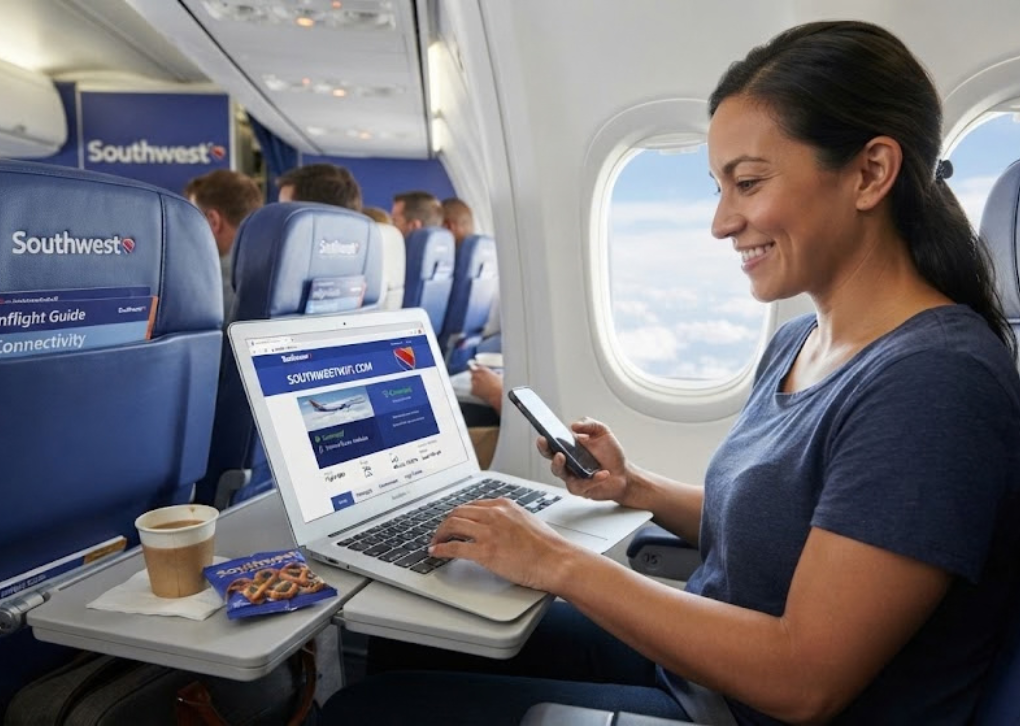
Southwestwifi.com is the onboard WiFi access portal for Southwest Airlines, allowing passengers to connect to the internet, activate their WiFi benefits, and access available inflight entertainment. Whether you want to answer work emails, watch your favorite shows, or message someone while flying, understanding how the service works can make your journey considerably more convenient.
One important detail has changed: Southwest now offers free inflight WiFi to Rapid Rewards members, thanks to its partnership with T-Mobile. You do not need to be a T-Mobile customer to qualify. However, connectivity and entertainment availability can vary depending on your aircraft, its onboard technology, and the route you are flying.
This comprehensive guide explains how to access Southwestwifi.com, activate your free internet connection, understand the available services, resolve common technical problems, and prepare your devices before boarding.
What Is Southwestwifi.com, and How Does It Work?
Southwestwifi.com is the web address passengers use to access Southwest Airlines’ onboard connectivity services. It acts as an entry point for WiFi authentication and, on supported aircraft, the airline’s inflight entertainment portal.
The system works through the aircraft’s wireless network. Once your device connects to the available Southwest WiFi network, opening the portal allows you to follow the appropriate steps for internet access.
Depending on the equipment installed on your flight, the experience may include:
- Internet access: Browse websites, check emails, and use supported online services.
- Free WiFi activation: Authenticate using an eligible Rapid Rewards membership.
- Inflight entertainment: Access available movies, television programs, and other entertainment.
- Messaging: Use supported messaging applications after activating your connection.
- Flight information: Access flight-related information and tracking features where offered.
The important distinction is that connecting to an aircraft’s wireless network does not necessarily mean you have already activated internet access. You may need to complete the authentication process before your browser and applications can connect to online services.
Is Southwestwifi.com an Official Southwest Airlines Service?
Yes. Southwest Airlines identifies SouthwestWiFi.com as the address passengers can enter to access its onboard connectivity experience.
The airline also publishes connection instructions on its official inflight entertainment and WiFi page.
For security, enter the address carefully rather than using unfamiliar websites that claim to provide special login credentials, discounted internet packages, or unrestricted access.
The onboard portal is designed for use when connected to an aircraft’s supported WiFi network. If you try to open it from your home internet connection, you should not expect to receive the same inflight experience.
For general flight bookings, account management, and customer assistance, use the main Southwest Airlines website.
How to Connect to Southwestwifi.com: Step-by-Step Instructions
Connecting to Southwest’s onboard wireless network is relatively straightforward, but your device settings can affect the process. The following instructions apply to most compatible smartphones, tablets, and laptops.
Step 1: Enable Airplane Mode
Open your device’s settings and activate Airplane Mode.
This disables your device’s cellular connection while allowing you to turn WiFi back on separately. Keep Airplane Mode enabled throughout the flight and follow any additional instructions from the cabin crew.
Step 2: Turn On WiFi
Open your wireless network settings and enable WiFi.
Wait for your device to display the available networks, then select the Southwest WiFi network advertised onboard.
The exact network label may vary depending on the aircraft’s equipment.
Step 3: Open Southwestwifi.com
After joining the aircraft’s network, your device may automatically display a connection page.
If that does not happen, open a supported browser and enter Southwestwifi.com in the address bar.
Wait for the connection page to load before proceeding.
Step 4: Select Your Internet Access Option
The available options depend on your aircraft and account eligibility.
Rapid Rewards members can follow the free WiFi activation process, while passengers without an eligible membership may be offered a paid connection where that option is supported.
Enter the requested account or booking information and complete any required authentication.
Step 5: Start Browsing
Once your connection has been activated, open another browser tab or launch a supported application.
Try loading a familiar website to confirm that your internet connection is working.
If a website does not respond, check whether your connection has actually been authenticated before changing any other device settings.
Southwest’s official connection guide provides additional instructions for passengers who encounter difficulties.
Is Southwestwifi.com Free or Paid?
Southwest’s internet pricing has changed significantly, so older articles describing WiFi as an exclusively paid service may no longer be accurate.
On October 24, 2025, the airline introduced free WiFi for Rapid Rewards members through its partnership with T-Mobile. The benefit is available on designated WiFi-enabled aircraft, subject to service availability.
Passengers who are not members can join the loyalty program for free or purchase internet access where a paid option is available.
Current Southwest WiFi Pricing and Eligibility
| Service | Cost or availability | Important details |
|---|---|---|
| Rapid Rewards member WiFi | Free | Available on designated WiFi-enabled aircraft |
| Non-member WiFi | $8 per device per flight | Available on select aircraft; price may change |
| Rapid Rewards enrollment | Free | Membership is required for the complimentary WiFi benefit |
| Inflight entertainment | Free where offered | Content availability depends on the aircraft and licensing |
| Starlink WiFi | Free for eligible members | Available on equipped aircraft |
These terms are based on Southwest’s published WiFi connection information. Actual service availability may be affected by aircraft changes, technical limitations, or other operational conditions.
How to Get Free WiFi Through Rapid Rewards
Rapid Rewards is Southwest Airlines’ loyalty program. It allows members to earn rewards on eligible activities and access benefits that include complimentary inflight connectivity.
To use this benefit, follow these steps:
- Visit Southwest.com and enroll in Rapid Rewards if you are not already a member.
- Save your username and membership number somewhere accessible before boarding.
- Link your membership to your flight reservation.
- Connect to the Southwest WiFi network after boarding.
- Open Southwestwifi.com and follow the free WiFi authentication process.
- Enter your membership information or eligible flight confirmation details when requested.
You do not need a paid loyalty membership or a particular mobile service provider to qualify for the standard Rapid Rewards WiFi benefit.
If you already have a Southwest account, check your membership information before creating another account.
Do You Need a T-Mobile Phone Plan?
No. T-Mobile sponsors Southwest’s complimentary WiFi benefit, but passengers do not need to use T-Mobile as their cellular provider.
An eligible Rapid Rewards member can access the benefit regardless of whether their regular mobile service comes from T-Mobile, Verizon, AT&T, or another carrier.
The relevant requirement is your loyalty-program eligibility and the availability of WiFi on your aircraft.
What Can You Do With Southwestwifi.com?
The services available through Southwest’s onboard network extend beyond checking email. Depending on the aircraft, you may be able to browse the internet, stream entertainment, exchange messages, and use several online applications.
However, there is an important difference between the airline’s traditional entertainment portal and the experience offered on Starlink-equipped aircraft.
1. Browse the Internet and Check Emails
An activated internet connection can help you access news websites, retrieve travel information, and manage personal or professional correspondence.
For business travelers, this can be particularly convenient when a flight falls between meetings or when an important document needs attention.
Connection performance may fluctuate, so save essential documents locally if you cannot afford to lose access to them.
2. Watch Movies and Television
Southwest offers complimentary entertainment on select aircraft. Depending on your flight, this may include movies, television series, and live television.
On aircraft that support the traditional entertainment experience, you can access available content through the onboard portal using your own compatible device.
Starlink-equipped aircraft work differently. Southwest states that its traditional onboard entertainment portal is not available on those aircraft. Instead, passengers can use their activated internet connection to access their own supported entertainment services.
Content licensing and geographic restrictions may also affect what you can watch.
3. Use WhatsApp and iMessage
Messaging is another reason passengers visit Southwestwifi.com.
Southwest supports text messaging through WhatsApp and iMessage, provided the relevant applications are installed and activated before you connect to the aircraft’s network.
Under the current free WiFi arrangement, passengers must activate their complimentary or paid internet connection to use the supported messaging service.
Text messaging should not be confused with voice or video calling. Southwest prohibits inflight calls through services such as WhatsApp, FaceTime, Skype, Zoom, and Microsoft Teams.
4. Access Flight Information
Some onboard entertainment experiences include flight-tracking information, allowing passengers to follow their journey while traveling.
Depending on the available features, passengers may be able to view information such as flight progress and estimated arrival details.
Feature availability varies by aircraft and connectivity system, so not every flight will present the same interface.
Southwestwifi.com and Starlink: What’s Different?
Southwest has been introducing Starlink, a satellite-based internet service developed by SpaceX, on select aircraft.
Starlink is designed to support internet activities that require greater bandwidth, including streaming, online collaboration, and other connected applications.
Southwest lists several capabilities for its Starlink service:
- Streaming movies, television programs, music, and podcasts.
- Accessing cloud-based documents and work applications.
- Participating in supported online gaming.
- Browsing and using multiple connected devices.
- Accessing internet service from takeoff to landing, subject to availability.
These capabilities do not mean every application will work perfectly or that Southwest’s restrictions on inflight voice and video calls have been removed.
How to Know Whether Your Flight Has Starlink
Southwest provides two ways to identify a Starlink-equipped aircraft.
Before departure, check your trip details in the Southwest mobile application. Flights scheduled to use Starlink-equipped aircraft can display a WiFi Powered by Starlink designation.
Once onboard, connect to the available Southwest WiFi network and open Southwestwifi.com. The connection experience should display Starlink-related information before you activate the service.
Remember that aircraft assignments can change at short notice. A service displayed before departure is not an unconditional guarantee of what will be available on your particular flight.
For further technical details, consult Southwest’s Starlink WiFi guidance.
Southwestwifi.com Not Working? Common Problems and Solutions
A failed connection does not always indicate that the aircraft’s internet service is unavailable. Sometimes the problem is caused by a device setting, browser configuration, authentication error, or temporary network interruption.
The most effective troubleshooting approach is to identify exactly where the connection process fails.
Problem 1: The WiFi Network Does Not Appear
If you cannot see the onboard network, first verify that WiFi has been turned on after activating Airplane Mode.
Open your network settings and allow the device to refresh its list of available connections.
If the network remains invisible, try toggling WiFi off and on. If other passengers are experiencing the same issue, the onboard system may be unavailable or experiencing a temporary technical problem.
Problem 2: The Portal Does Not Load
Sometimes a device successfully joins the wireless network but does not display the authentication page.
Try opening a new browser window and entering Southwestwifi.com directly into the address bar.
If the page remains inaccessible, temporarily disable any VPN, custom DNS configuration, or privacy feature that may interfere with captive-portal detection.
Apple Private Relay can also affect the availability of certain onboard services. Southwest identifies privacy browsing modes and VPN functionality as potential sources of connection difficulties.
Problem 3: Your Rapid Rewards Login Is Rejected
Check that you entered the correct membership information and that the account is linked to your reservation where necessary.
If you have forgotten your username or membership number, Southwest provides a recovery option through its main website.
You may also be able to authenticate using your six-character flight confirmation number and your name, provided your Rapid Rewards account is linked to the booking.
Do not repeatedly enter random credentials. Recover the correct details through Southwest’s official account system instead.
Problem 4: WiFi Connects but the Internet Does Not Work
This usually means one of two things: your device has joined the aircraft’s network but has not completed authentication, or the internet service is experiencing a problem.
Reopen the connection page and check your activation status before restarting your device.
If authentication is complete but ordinary websites remain inaccessible, test another website or wait for a temporary interruption to clear.
Problem 5: Movies or Streaming Services Will Not Play
A working internet connection does not guarantee that every entertainment service is available.
Check whether the issue affects the entire connection or only a particular streaming application.
Traditional onboard entertainment may be unavailable on Starlink aircraft, while external streaming services may be affected by licensing restrictions, account requirements, bandwidth, or other service limitations.
Quick Troubleshooting Reference
| Problem | Possible cause | Suggested action |
|---|---|---|
| No Southwest network | WiFi disabled or service unavailable | Enable WiFi and refresh the network list |
| Portal does not open | Captive-portal or browser issue | Open the portal manually |
| Login unsuccessful | Incorrect account or booking details | Verify your membership and reservation |
| Connected without internet | Authentication incomplete or service interruption | Check activation and retry |
| Video does not play | Content restriction or connection issue | Check aircraft features and service availability |
| Frequent disconnections | Temporary signal or equipment problem | Reconnect when service becomes available |
If none of these solutions works, consult the airline’s Help Center for further assistance.
Which Devices and Browsers Are Compatible?
Southwest supports a range of commonly used smartphones, tablets, and computers.
According to its published technical requirements, the current operating-system version and the two most recent previous versions are supported for the device categories listed below.
| Device | Supported browsers |
|---|---|
| iPhone | Safari, Google Chrome |
| iPad | Safari, Google Chrome |
| Android device | Google Chrome |
| Mac computer | Safari, Google Chrome, Firefox |
| Windows computer | Google Chrome, Microsoft Edge, Firefox |
These are the combinations identified in Southwest’s supported devices documentation.
An outdated operating system or unsupported browser may introduce compatibility problems, particularly when accessing protected video content or an authentication page.
Update your device and browser before leaving for the airport rather than attempting to download large updates during your flight.
Is Southwestwifi.com Safe to Use?
Southwestwifi.com is an official access address identified by the airline, but passengers should still follow ordinary precautions when using an onboard wireless network.
An official WiFi connection does not eliminate every cybersecurity or privacy risk.
Southwest’s privacy policy explains that the airline and its service providers may collect information relating to inflight WiFi usage, including technical device identifiers, connection information, and certain browsing-related data.
Practical Security Tips
- Use legitimate websites: Check the address before entering account information.
- Prefer HTTPS: Use encrypted website connections when browsing.
- Avoid suspicious links: Do not trust messages claiming that you need to visit an unrelated website to activate free internet.
- Protect sensitive accounts: Avoid unnecessary financial transactions or handling highly confidential information over shared networks.
- Use a VPN when appropriate: Complete the portal authentication first if your VPN prevents the login page from loading.
- Keep your device updated: Install important operating-system and security updates before traveling.
If you temporarily turn off a VPN or privacy feature during authentication, restore your preferred protection once the connection has been established, provided it works with the onboard service.
For work involving confidential company information, follow your organization’s security policies.
How to Prepare for Southwest WiFi Before Boarding
A little preparation can prevent several common connectivity problems.
Since inflight service is dependent on equipment and operational conditions, it is sensible to prepare for both a connected journey and a flight without reliable internet.
Before You Leave for the Airport
Complete the following checklist:
- Create a free Rapid Rewards account if you do not already have one.
- Link your membership to your flight reservation.
- Save your confirmation number and account details securely.
- Install or update your preferred browser.
- Download and activate WhatsApp or other applications you plan to use.
- Download essential documents and entertainment for offline access.
- Charge your phone, tablet, or laptop.
- Bring suitable headphones.
Southwest does not provide seatback entertainment screens or rent entertainment devices. In-seat charging availability also varies, so boarding with a charged device is important.
Check the airline’s current rules if you plan to bring a portable charger.
Tips for Better Connectivity During Your Flight
After completing your Southwestwifi.com login, keep unnecessary background activity to a minimum.
Pause automatic cloud backups, large downloads, and nonessential software updates. These tasks can consume considerable bandwidth without improving your travel experience.
If you primarily need the internet for work, prioritize essential messages and documents before starting entertainment streams or other demanding applications.
Save any completed work frequently. Even a previously stable connection can be interrupted by technical or operational conditions.
Southwestwifi.com vs. the Southwest Airlines App
Although these services are closely related, they serve different purposes.
Southwestwifi.com is primarily associated with accessing the aircraft’s onboard wireless connection and related services.
The Southwest Airlines mobile application is designed to help passengers manage their broader travel experience.
| Feature | Onboard WiFi portal | Southwest Airlines app |
|---|---|---|
| Activate inflight WiFi | Yes | Use the onboard connection process |
| Access available onboard entertainment | On supported aircraft | Availability depends on the service and aircraft |
| View flight reservations | Not its primary purpose | Yes |
| Access boarding information | Not its primary purpose | Yes |
| Manage Rapid Rewards information | Through the relevant authentication process | Yes |
| Check flight-related information | Where available | Yes |
Both can be useful during the same journey.
For a smoother experience, install the airline’s application before departure and use the onboard portal when you need to activate your inflight connection.
Common Misconceptions About Southwest Airlines WiFi
Several outdated assumptions about Southwest’s internet service still appear in online guides.
Understanding the differences can help you avoid unnecessary payments and unrealistic expectations.
Misconception 1: Every passenger must pay $8 for WiFi.
Rapid Rewards members qualify for complimentary WiFi on designated WiFi-enabled aircraft. The $8 option is intended for non-members where paid access is available.
Misconception 2: Only T-Mobile customers get free internet.
The benefit is sponsored by T-Mobile but is available to eligible Rapid Rewards members regardless of their regular wireless provider.
Misconception 3: Joining the onboard network means the internet is activated.
Connecting to the aircraft’s WiFi network and completing the internet authentication process are separate steps.
Misconception 4: Every Southwest aircraft has identical entertainment features.
Equipment, entertainment availability, and streaming capabilities can vary. Starlink-equipped aircraft also have a different entertainment experience from aircraft using the traditional onboard portal.
Misconception 5: Free internet guarantees uninterrupted service.
Complimentary access does not eliminate potential connectivity interruptions, technical issues, application restrictions, or other operational limitations.
Frequently Asked Questions About Southwestwifi.com
1. How do I access Southwestwifi.com on my phone?
Activate Airplane Mode and then manually enable WiFi on your phone. Select the available Southwest WiFi network, open Safari or Chrome, and enter Southwestwifi.com into the browser’s address bar.
If the connection page opens automatically, you can use it without manually entering the address. Follow the displayed authentication instructions to activate your eligible internet service.
2. Can I use Southwestwifi.com without paying?
Yes. Rapid Rewards members receive complimentary internet access on designated WiFi-enabled aircraft, subject to availability.
Joining Rapid Rewards is free, and you do not need a T-Mobile phone plan. If you are not a member, you can enroll before traveling or use the $8 paid option on aircraft where it is offered.
3. Why is Southwestwifi.com not loading even though WiFi is connected?
Your device may be connected to the aircraft’s wireless network without successfully opening its captive portal. Browser settings, VPN software, custom DNS configurations, and privacy features can sometimes interfere with this process.
Try opening the address manually, temporarily disabling conflicting network settings, and reconnecting to the available Southwest network. If multiple passengers are affected, the onboard system may be experiencing a technical interruption.
4. Can I watch Netflix, YouTube, or other streaming services on Southwest WiFi?
Streaming availability depends on your aircraft’s internet equipment, connection quality, and the restrictions applicable to particular services.
Southwest advertises streaming capabilities on Starlink-equipped aircraft, while other onboard systems may restrict certain high-bandwidth applications. Paid streaming subscriptions and access to particular titles are not included automatically with the airline’s WiFi benefit.
5. Can I use Southwestwifi.com on multiple devices?
Southwest advertises complimentary WiFi on multiple devices for eligible Rapid Rewards members, subject to the capabilities and conditions of the onboard service.
Starlink-equipped aircraft specifically support connecting multiple personal devices. If you are purchasing non-member internet access, the published $8 option is priced per device per flight where offered.
For the most accurate information, follow the device authorization instructions displayed during your particular flight.
Conclusion: Make the Most of Southwestwifi.com on Your Next Flight
Southwestwifi.com provides a convenient way to activate onboard internet access and use available connectivity services while traveling with Southwest Airlines. With complimentary WiFi now available to Rapid Rewards members and Starlink being introduced on select aircraft, passengers have more ways to stay connected during their journeys.
The simplest approach is to prepare before departure. Join Rapid Rewards, link your membership to your reservation, update your devices, and download important files in case connectivity becomes unavailable.
Once onboard, enable Airplane Mode, connect to the available Southwest WiFi network, open the portal, and complete the appropriate authentication process.
For the latest pricing, eligibility requirements, and aircraft-specific information, check Southwest Airlines’ official WiFi and entertainment page before your flight.
A few minutes of preparation can make your inflight internet experience easier, more productive, and considerably less stressful.