



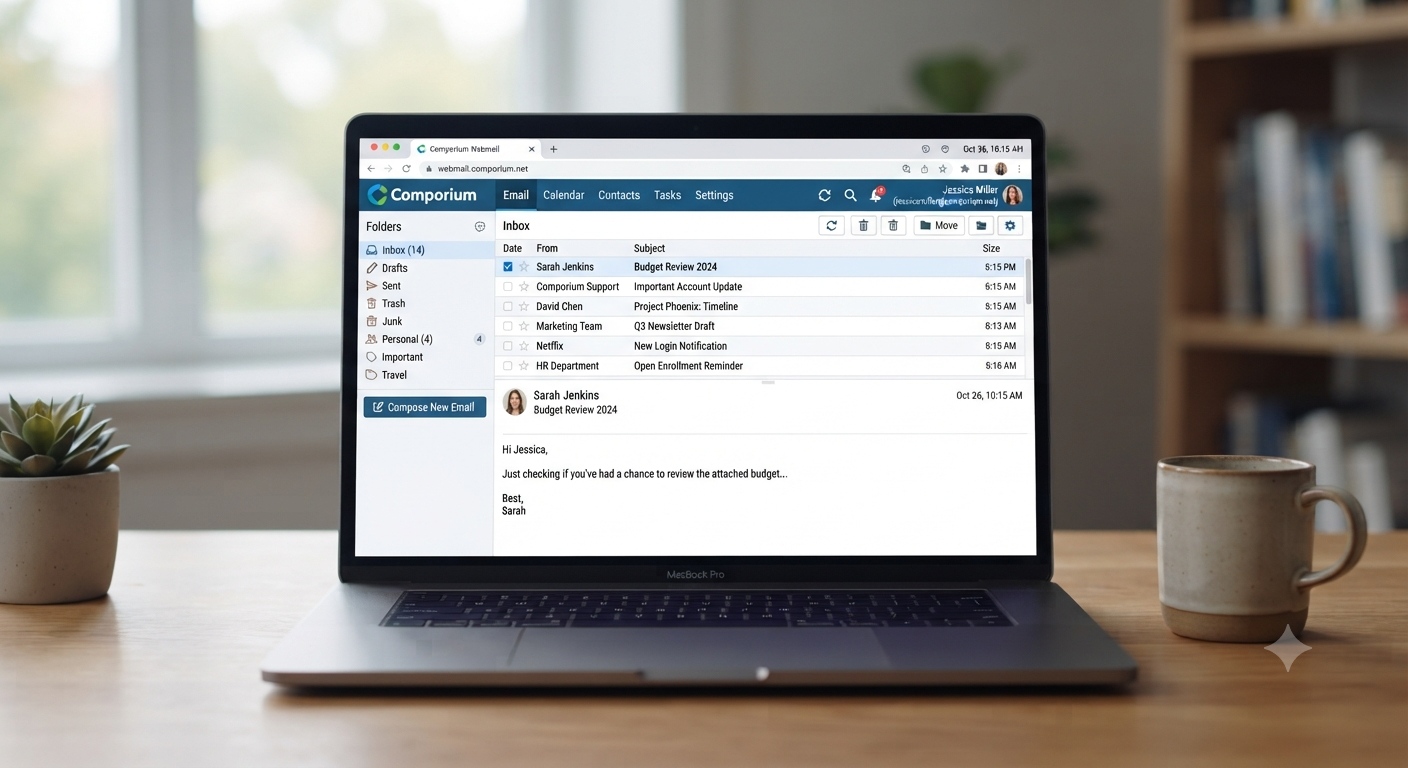
The Comporium webmail app is a common search term, but it can create confusion. Comporium does not currently provide a dedicated email application for reading and sending @comporium.net messages. Instead, customers can open the official webmail service in a browser or connect their account to a compatible email client such as Apple Mail, Gmail, Outlook, or Thunderbird.
That distinction matters. This Comporium webmail app guide covers both browser and mail-client access, while the browser-based service remains the simplest option because it requires no incoming or outgoing server configuration. A third-party mail app, however, can provide notifications, offline access, and a unified inbox.
The sections below explain both approaches. You will learn how to log in securely, configure a phone or computer, change your password, manage spam, organise messages, and resolve common sending or receiving problems.
What Is the Comporium Webmail App?
The Comporium webmail app is best understood as Comporium’s browser-based email portal rather than a downloadable app. Existing comporium.net users can sign in through the official webmail page to read messages, send email, manage folders, review junk mail, access contacts, and adjust preferences.
Comporium’s official support documentation directs customers to webmail.comporium.net for browser access. vice is separate from My Comporium. The My Comporium mobile app is designed for account-management tasks such as viewing statements, paying bills, receiving outage notices, checking internet service status, and reporting service issues.
Its official feature list does not position it as an email inbox application. ail Versus the My Comporium App
| Feature | Comporium webmail | My Comporium app |
|---|---|---|
Read and send comporium.net email |
Yes | Not its primary function |
| Manage inbox folders and junk mail | Yes | No |
| Pay a Comporium bill | No | Yes |
| View statements and payment history | No | Yes |
| Receive service outage notifications | Not the main purpose | Yes |
| Configure email preferences | Yes | No |
When comparing the Comporium webmail app with My Comporium, the practical takeaway is simple: use webmail for email and My Comporium for billing and service management.
Users searching for one universal Comporium application sometimes install the account-management app and then wonder why their mailbox is not visible. They are two different tools serving different purposes.
How to Log In to the Comporium Webmail App
To access the Comporium webmail app, open a current web browser and go to the official login page at webmail.comporium.net. Enter your complete Comporium email address and its email password, then select the login button.
Comporium also provides an alternate login route through its help documentation if the main webmail address cannot be reached. full email address, not only the portion before the @ symbol. This is also the username format required when authenticating through supported IMAP, POP3, and SMTP connections. Comporium Webmail App Login Checklist
Protecting the Comporium webmail app login starts before entering your password. Check these details:
- Confirm that the address belongs to the official Comporium domain.
- Avoid signing in through links in unexpected email messages.
- Do not save the password on a public or shared computer.
- Sign out after using webmail on a device you do not control.
- Use a unique password that is not reused for banking, shopping, or social media.
- Avoid giving a verification code or password to someone claiming to be technical support.
CISA recommends strong, unique passwords and multifactor authentication where a service supports it because a password alone may not prevent account takeover. Comporium’s public email instructions should be checked for the latest available security options because platform features can change. rium Webmail App Server Settings
You do not need server details when using the browser portal. However, the Comporium webmail app experience can be recreated inside a phone or desktop mail client by adding the account manually with Comporium’s official IMAP and SMTP settings.
Recommended IMAP Settings
| Setting | Value |
| Account type | IMAP |
| Incoming server | mail.comporium.net |
| Incoming port | 993 |
| Incoming security | SSL enabled |
| Username | Full Comporium email address |
| Password | Comporium email password |
| Outgoing server | smtp.comporium.net |
| Outgoing port | 587 or 465 |
| Outgoing security | SSL enabled |
| Authentication | Required |
| SMTP username | Full Comporium email address |
Comporium lists IMAP port 993 with SSL and authenticated SMTP through port 587 or 465. IMAP is normally the better choice for users with multiple devices because messages and folders remain synchronised with the server. onal POP3 Settings
Users who specifically need POP3 can use mail.comporium.net on port 995 with SSL enabled. SMTP remains smtp.comporium.net, and outgoing authentication still requires the full email address and password. less suitable for a modern multi-device workflow. Depending on the mail client’s configuration, messages may be downloaded to one device instead of remaining consistently synchronised across a phone, computer, tablet, and browser inbox.
IMAP or POP3: Which Should You Choose?
For most users, IMAP is the recommended option. It keeps the main copy of each message on the server and reflects actions such as reading, deleting, moving, or flagging messages across connected devices.
POP3 may be useful when someone deliberately wants messages downloaded to one computer. It requires more careful configuration, especially if the same mailbox is also used on a phone.
Setting Up Comporium Email on an iPhone or iPad
The easiest way to use the Comporium webmail app experience on an iPhone is to add the account to Apple Mail. Comporium’s instructions specify IMAP as the account type and identify smtp.comporium.net as the outgoing server, with port 587 or 465 available for SMTP. his general process:
- Open Settings and go to the Mail account section.
- Choose Add Account, then select Other.
- Tap Add Mail Account.
- Enter your name, full Comporium email address, password, and a description.
- Select IMAP.
- Enter
mail.comporium.netfor the incoming server. - Enter
smtp.comporium.netfor the outgoing server. - Use your full email address as the username for both servers.
- Save the account and allow the device to verify the settings.
After setup, send a test message to another email address and reply to it. This checks both the outgoing SMTP connection and incoming IMAP synchronisation instead of assuming that successful account verification means every function is working.
If Apple Mail shows an SSL warning, do not immediately approve an unfamiliar certificate. Recheck the server spelling, port number, and security settings first.
Setting Up the Comporium Webmail App on Android
There is no separate official Comporium webmail app download for Android email. Comporium advises users to open an email application, choose Other, enter the Comporium address and password, and select an IMAP account during manual setup. , tap the profile icon, choose Add another account, and select Other. Enter the complete email address, choose personal IMAP when prompted, and apply the official incoming and outgoing server values.
Comporium publishes a dedicated support path for adding a comporium.net account to Gmail. MTP authentication** enabled. A device may receive messages successfully but fail to send them when the outgoing username, password, port, or security setting is missing.
After the account is added, review the synchronisation frequency. Very frequent checks can consume more battery, while an overly long interval may delay important messages.
Using Comporium Email in Outlook, Apple Mail, or Thunderbird
To bring the Comporium webmail app experience into Outlook, Apple Mail, or Thunderbird, the same settings can connect a Comporium mailbox to most standard desktop clients.
Choose a manual IMAP configuration if automatic detection selects the wrong server. Enter the official hostnames, ports, encryption options, and full-address credentials.
For a reliable setup:
- Prefer IMAP over POP3 for synchronised folders.
- Enable SSL/TLS for incoming and outgoing traffic.
- Require authentication for the outgoing SMTP server.
- Use the full
@comporium.netaddress for every username field. - Avoid copying settings from unofficial pages when official values are available.
- Send a test message after the configuration is saved.
- Check that sent messages appear in the correct Sent folder.
Comporium states that its server settings work with clients supporting POP3, IMAP, and SMTP. Its help centre also references common desktop clients, although individual menu names may differ between software versions. l Features Inside Comporium Webmail
The Comporium webmail app offers more than basic message reading. Its settings area can be used to control signatures, out-of-office replies, display preferences, and mail rules.
The contacts area also provides access to saved contacts and contact folders. l Signatures
A signature can automatically add your name, phone number, business details, or other information to outgoing messages. Keep the design simple because oversized logos, multiple colours, and lengthy legal notices can make messages harder to read on mobile devices.
Avoid including sensitive personal information in a signature. Remember that every recipient and forwarded-message reader may be able to see it.
Automatic Replies
An out-of-office reply is useful when travelling, taking leave, or temporarily unavailable. The message should explain when you expect to return and provide an alternative contact only when necessary.
Avoid revealing detailed travel plans or stating that a home will be unoccupied. A short availability notice is usually enough.
Filters and Inbox Organisation
Filters automatically sort messages according to conditions such as sender, recipient, subject, or other message properties. Comporium’s guidance directs users to the preferences area and the Filters tab to create these rules. ilter ideas include:
- Move bills and receipts into a Finance folder.
- Send newsletters to a Subscriptions folder.
- Flag messages from family members or important contacts.
- Route automated alerts away from the primary inbox.
- Organise messages by project, client, school, or community group.
- Send low-priority notifications to a folder for weekly review.
Keep filtering rules simple. Overlapping rules can hide legitimate messages, so check the destination folders whenever an expected email appears to be missing.
Junk Mail and Spam Controls
Comporium’s updated email platform allows users to manage spam directly from the webmail Junk folder, and the previous Daily Digest delivery was removed. The company also advises marking phishing, spam, and suspicious messages as spam inside the account. he Junk folder before deleting its contents, especially when waiting for password-reset messages, invoices, appointment confirmations, or messages from a new sender.
If one sender repeatedly lands in junk, add the address to contacts and review any active filters or blocked-sender settings.
Mailbox Limits Users Should Know
The Comporium webmail app operates within published system limits. Comporium lists a 5 GB maximum mailbox, a 20 MB maximum message attachment, and up to 200 recipient addresses per message. mits explain several errors that can look like login or network failures. A full mailbox may stop new mail from arriving, a large attachment may prevent a message from sending, and a mass email can fail when its recipient count exceeds the platform limit.
Regular Comporium webmail app cleanup prevents quota-related delivery failures. To reduce mailbox usage:
- Delete messages with large attachments that are no longer needed.
- Empty the Trash and Junk folders after reviewing them.
- Save essential attachments to secure local or cloud storage.
- Sort messages by size to find the largest items quickly.
- Avoid emailing the same large file repeatedly.
- Use a secure file-sharing link when an attachment is too large.
- Remove duplicate newsletters and automated notifications.
Remember that deleting a message may not immediately reduce usage when it remains in the Trash folder. Emptying deleted items may be necessary before the storage becomes available again.
How to Change a Comporium Email Password
A password change is managed through Comporium’s account tools rather than by editing only the saved password inside a mail app. Comporium’s help article says users are directed to the Services page after signing in, where the password for a specific email address can be changed. anging it, update the password everywhere the account is connected. That includes the Comporium webmail app login, Apple Mail, Gmail, Outlook, Thunderbird, tablets, old phones, and any scanner or multifunction printer configured to send email.
Repeated login attempts from a forgotten device can create confusing authentication prompts. Remove the old account from devices you no longer use rather than leaving an outdated password stored indefinitely.
Create a Safer Password
A strong email password should be:
- Long enough to resist guessing attempts.
- Different from passwords used on other websites.
- Difficult to connect to your name, address, birthday, or family.
- Stored in a reputable password manager when possible.
- Changed immediately after suspected phishing or unauthorised access.
Do not simply add one number to an old compromised password. A completely new and unique password provides stronger protection.
Troubleshooting the Comporium Webmail App
When the Comporium webmail app is not working, isolate the problem before changing multiple settings. Start by testing the browser portal because it helps separate an account-level issue from a mail-client configuration problem.
If webmail works but Outlook or a phone app does not, the account itself is probably active and the local app configuration deserves closer review. That is a troubleshooting inference rather than a guarantee, but it prevents unnecessary password resets.
Login Page Will Not Open
Try another browser, disable extensions that block scripts, clear cached site data, or use a private browsing window. Confirm that the device has internet access and that you are using the official Comporium webmail address rather than an old bookmark or third-party login page.
If the main portal cannot be reached, use Comporium’s alternate login option or help centre. Comporium explicitly provides an alternate route for users who cannot access the primary webmail address. word Is Rejected
Type the complete email address and re-enter the password manually. Check Caps Lock, remove accidental spaces, and confirm that a password manager has not inserted credentials for the My Comporium account instead of the email account.
If the password was recently changed, update every connected email client. Comporium publishes separate guidance for updating saved email passwords on iPhone and Android devices. l Can Be Received but Not Sent
This commonly points to the SMTP configuration. Verify:
- Outgoing server:
smtp.comporium.net - Port: 587 or 465
- SSL: Enabled
- Authentication: Required
- Username: Full Comporium email address
- Password: Current email password
Also check whether the attachment is over 20 MB or the recipient list exceeds 200 addresses. l Can Be Sent but Not Received
Check the mailbox quota, Junk folder, filters, blocked senders, and incoming IMAP settings. Comporium recommends checking filters when messages from a specific sender are not arriving. est message from a different provider. If only one sender is affected, the problem may involve filtering or the sender’s delivery system rather than the entire Comporium mailbox.
The Mail App Keeps Asking for a Password
Remove the saved password and enter it again in both the incoming and outgoing server sections. Some clients store separate credentials for IMAP and SMTP, so correcting only the incoming password may leave outgoing mail broken.
Comporium suggests checking client settings, restarting the application, and, when necessary, reinstalling it. The company also states that it does not offer its own dedicated email application, making correct third-party client configuration especially important. ages Are Going to the Wrong Folder
Review your active filters and sorting rules. One broad rule based on a common word can move many unrelated messages without making the cause obvious.
Temporarily disable suspicious rules and send a test message. Re-enable them one at a time until the problematic condition is identified.
Old Messages Are Missing on One Device
Check whether the device was configured with POP3 rather than IMAP. POP3 settings may download messages locally, while IMAP is designed to maintain a synchronised server-based view.
Also review the app’s synchronisation-period setting. Some applications display only recent messages unless the user increases the number of days or months to synchronise.
Account Availability and Inactive Email Addresses
A major detail missing from many guides is Comporium’s legacy-account policy. As of February 1, 2022, Comporium stopped issuing new comporium.net email accounts and stopped reactivating inactive accounts.
Its support information also notes that accounts may be archived after 75 days of inactivity. users should therefore treat the address as a legacy service that needs regular access and careful maintenance. Do not assume an abandoned mailbox can simply be recreated later, and keep recovery information current wherever the account interface allows it.
People who use a Comporium address for banking, healthcare, government accounts, subscriptions, or password recovery should also maintain a separate recovery email. This reduces the risk of becoming locked out of unrelated services if the primary mailbox becomes unavailable.
Security Tips for Comporium Email Users
The Comporium webmail app may contain personal correspondence, password-reset links, bills, and contact information, making it a valuable target for phishing. Comporium recommends marking suspicious messages as spam, while CISA advises users to recognise urgent or unusual requests, avoid untrusted links, and report phishing attempts. Comporium webmail app* use depends on habits as much as settings. Use these protections:
- Create a long, unique password.
- Keep browser and operating-system updates installed.
- Never send your password by email.
- Verify unexpected requests using a known phone number.
- Inspect the sender’s full address, not only the display name.
- Avoid opening unexpected attachments.
- Use multifactor authentication on recovery accounts and linked services where available.
- Change the password promptly if you entered it on a suspicious page.
- Review Sent, Deleted, and forwarding settings after suspected compromise.
- Remove unknown devices and outdated mail-client connections.
A legitimate-looking logo does not prove that a message is genuine. Attackers routinely imitate service providers, delivery companies, financial institutions, and support teams to create urgency.
Be especially careful with messages threatening immediate account closure. Instead of following the included link, open Comporium’s official website or webmail portal independently.
Frequently Asked Questions
Is there an official Comporium webmail app for iPhone or Android?
No dedicated Comporium email application is currently offered. Customers can use browser-based webmail or add the account to a compatible client such as Apple Mail or Gmail with Comporium’s IMAP and SMTP settings.
The My Comporium app is mainly for billing, service status, troubleshooting, and account management. is the official Comporium email login?
Comporium directs users to its official webmail portal at webmail.comporium.net. Sign in with the complete Comporium email address and the password assigned to that mailbox. official pages that request your password. Opening the recognised Comporium address manually is safer than following an unexpected email link.
What are the correct Comporium IMAP and SMTP settings?
Use mail.comporium.net with port 993 and SSL for IMAP. For outgoing mail, use smtp.comporium.net with port 587 or 465, SSL enabled, authentication required, and the full email address as the username. , the incoming server remains mail.comporium.net, but the port is 995 with SSL enabled.
Why is my Comporium email not sending attachments?
The message may exceed Comporium’s 20 MB attachment limit, or the mailbox client may have incorrect SMTP settings. Reduce or compress the file, use a secure sharing link, and verify the outgoing server, port, SSL, username, and password. that email encoding may increase the final message size. A file slightly below 20 MB could still produce a message that exceeds the permitted limit.
Can I create a new Comporium email account?
Comporium states that it stopped issuing new comporium.net email accounts on February 1, 2022, and does not reactivate inactive accounts. Existing customers should maintain access, keep recovery details current, and avoid leaving the mailbox unused for extended periods. Steps for Reliable Comporium Email Access
The Comporium webmail app is most reliable when users understand what it actually is: a browser-accessible mailbox that can also be connected to established third-party email clients.
Begin with the official webmail portal. Use IMAP for synchronised access, enter the full email address for authentication, and apply Comporium’s published SSL-enabled server settings.
Next, send and receive a test message, review the Junk folder, confirm that the mailbox is below its storage limit, and update all connected devices whenever the password changes.
Existing comporium.net addresses should be maintained carefully because new accounts are no longer issued and inactive accounts are not reactivated. Regularly access the mailbox, preserve important messages, maintain recovery information, and use a separate recovery address for critical online accounts.