


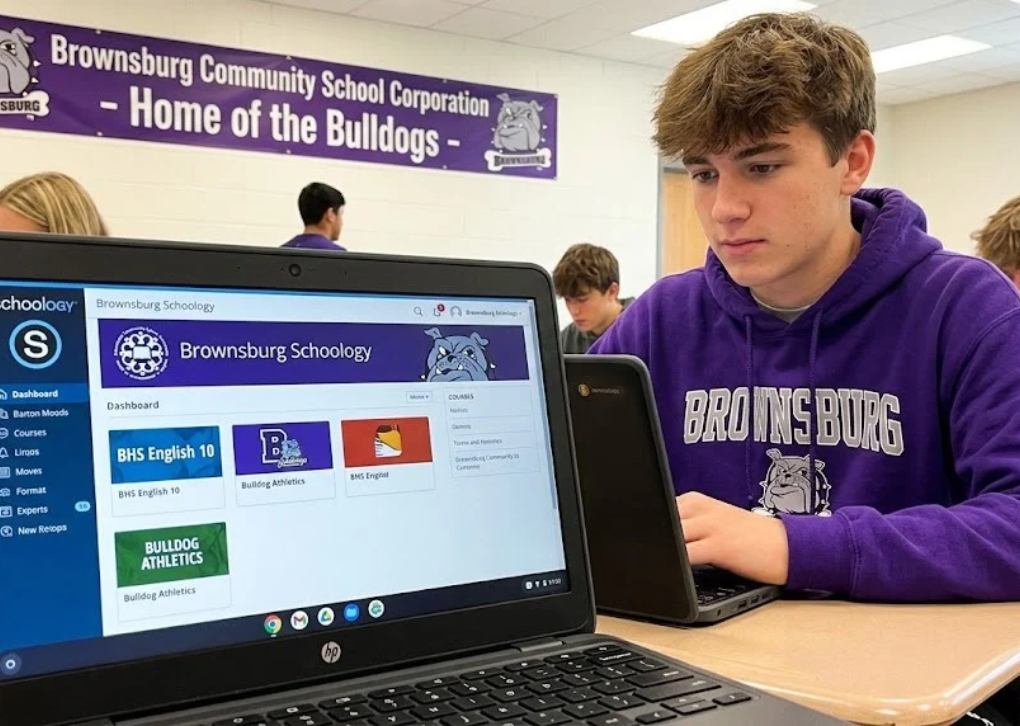
Finding the right Brownsburg Schoology login should not require a guessing game. Students and parents use different entry points, and choosing the wrong one can make a perfectly valid account look broken. This guide explains the official links, how to get into your account, and what to do after you sign in.
The details matter. Brownsburg Community School Corporation (BCSC) lists Schoology for secondary students, while its elementary resource link points to ClassLink. Parents follow a separate process using the email address associated with PowerSchool, rather than simply copying their child’s sign-in method.
Brownsburg Schoology Login: Official Links at a Glance
Start with the route that matches your role. These addresses are linked from, or explicitly named in, the district’s own resources.
| Who needs access? | Official destination | Best next step |
|---|---|---|
| Middle or high school student | Brownsburg Schoology | Follow the district’s school-account sign-in process |
| Parent or guardian with an existing account | Schoology parent login | Enter your existing parent account credentials |
| Parent accessing Schoology for the first time | Schoology account recovery | Enter the same email used in PowerSchool |
| Elementary student | BCSC Student Resources | Select the district’s ClassLink elementary link |
| Family checking official school records | Brownsburg PowerSchool | Sign in to the separate student information system |
Important: Do not assume that every Schoology login screen serves the same audience. The student’s district-specific page and the parent’s general Schoology login are deliberately different routes.
What Is Brownsburg Schoology and Who Uses It?
Brownsburg Schoology is the district’s access point for Schoology, the learning management system used to organize digital classroom activity. Depending on a teacher’s course setup, students may encounter learning materials, assignments, assessments, announcements, discussions, calendars, and feedback in one place.
For a student, the most practical benefit is visibility: What is due, what needs attention, and where are the instructions? For families, parent access provides another way to follow schoolwork without needing to sign in as the student.
Brownsburg Schoology for Middle and High School Students
BCSC’s Student Resources page explicitly labels the Schoology link “Secondary.” That makes it the relevant starting point for families at Brownsburg East Middle School, Brownsburg West Middle School, and Brownsburg High School, subject to the school’s current directions.
The same official page labels ClassLink “Elementary.” An elementary family searching for Brownsburg Schoology should check its teacher’s instructions rather than assume a middle school login applies to a younger student.
How Teachers and Parents Use the Learning Platform
Teachers can structure course folders, share lesson resources, set assignment due dates, and provide scores or comments when enabled. Which features appear to a learner depends on the course, assignment type, and district settings.
Parents receive their own view of relevant student activity. They may be able to inspect course updates, assignments, and grades, but their account is not a substitute for the student’s account when work needs to be completed or submitted.
How to Log In to Brownsburg Schoology as a Student
The safest student login begins on a district-owned page, not on an unrelated website claiming to offer a shortcut. BCSC links directly to brownsburg.schoology.com from its official Student Resources page.
- Visit the BCSC Student Resources page.
- Under Links to Frequently Used Programs, choose Schoology — Secondary.
- Follow the sign-in page that opens. The district’s Schoology link currently redirects into a Microsoft sign-in flow.
- Use the school account and authentication instructions provided by BCSC, not a personal Microsoft account.
- After authentication, open the relevant course and confirm your assignments or course materials appear.
The Microsoft redirect is an important detail missing from many generic tutorials. If you are asked to select an account, choose the school identity you normally use for district services; if you do not know it, contact your school rather than creating a new personal Schoology profile.
Brownsburg Schoology Student Login From Home
Students can start with the same district Student Resources page when working away from school. BCSC also provides a link titled “How do I access Schoology from home?” on that page, which is worth checking if a school-managed device behaves differently from a personal computer.
When opening Brownsburg Schoology on a shared computer, sign out of unrelated Microsoft accounts before trying again if the wrong account appears. After logging in, check the course title and your account name to avoid confusing a sibling’s session with your own.
Brownsburg Schoology Parent Login: First-Time Setup
The most useful district-specific discovery is that Brownsburg Schoology parent setup is based on the email address already used in PowerSchool. BCSC’s published parent instructions direct first-time parents to the Schoology account recovery page, rather than telling them to create an unrelated account using a generic access code.
Follow the district’s published process:
- Open Schoology’s recovery page.
- Enter the email address you use for PowerSchool.
- Select Send My Login Info.
- Check that inbox and open the link sent by Schoology.
- Follow the prompts to access your parent account and set a new password.
Do not reuse your PowerSchool password by assumption. Brownsburg states that the Schoology parent password is separate from the PowerSchool password, even when both services recognize the same email address.
Returning Parents: How to Sign In Again
Existing parents whose Schoology email matches the email listed in PowerSchool can generally continue using their established Schoology password. Start at app.schoology.com/login, rather than the district-specific student entry point.
If your previous account used another email address, or you cannot remember its password, use the recovery process above. Avoid repeatedly registering new accounts, which can create confusion about which profile is connected to your child.
What if Your Recovery Email Does Not Arrive?
Check spam, junk, and email search for Schoology messages. Then verify that the address entered is the one your school has on file in PowerSchool, not merely the email you use most frequently.
If there is still no message, contact the school to confirm the email associated with your parent records. Changing browsers rarely fixes an incorrect email-to-account match; resolving the record is the more useful next step.
What Can You Do Inside Brownsburg Schoology?
Getting inside Brownsburg Schoology is only the beginning. A good weekly routine focuses on course materials, due dates, completed work, and teacher feedback rather than jumping between every available menu.
Find Classes, Files, and Assignment Instructions
Open Courses, choose a subject, and inspect the materials or folders provided by the teacher. Look for the assignment’s written directions, attached templates, grading rubric, due date, and any instructions about whether the work is submitted online or completed in class.
Not every assignment requires a file upload. A task may involve a discussion, an online assessment, an external learning tool, or an activity that the teacher collects in person.
Submit Work Without Losing Proof of Completion
When an assignment accepts online submissions, open it and follow the submission option shown for that specific task. Attach or create the requested work, complete the submission action, and return to the assignment page to confirm that the submission appears.
Keep a copy of the file until the teacher has reviewed it. If the platform reports an upload error, save the work locally, retry on a stable connection, and inform the teacher before the deadline where possible.
Check the Calendar Before Deadlines Become Emergencies
Schoology’s Calendar can display scheduled events and assignment due dates, with views organized by day, week, or month. Its usefulness depends on the dates teachers enter, so a personal planner remains helpful for verbal reminders and activities outside the system.
Try a three-minute check every school afternoon: review tomorrow’s due items, scan the rest of the week, and identify any assignment that needs more than one study session. This habit is more effective than relying exclusively on a last-minute notification.
Understand Grades and Feedback Correctly
Schoology can show scores, comments, and other information after an instructor grades or publishes an item, subject to course settings. An empty grade field does not automatically mean a student received a zero; the item may still be awaiting grading, publication, or synchronization.
If a grade seems inconsistent, compare the assignment name, date, category, and teacher feedback first. Then consult PowerSchool, which Brownsburg provides separately for student information and parent access, and ask the teacher which record should be treated as authoritative for a particular question.
Brownsburg Schoology vs. PowerSchool, ClassLink, and ParentSquare
One source of frustration is expecting a single website to perform every school-related task. Brownsburg Schoology has a classroom-learning focus, while other BCSC services handle different parts of school life.
| Platform | Main reason to use it | Important distinction |
|---|---|---|
| Schoology | Classroom materials, assignments, course updates, and learning feedback | Student and parent logins follow different routes |
| PowerSchool | Parent portal, student information, and academic records | Its account password is not the Schoology parent password |
| ClassLink | Launching school applications, listed by BCSC for elementary students | It is not the default secondary Schoology link |
| ParentSquare / StudentSquare | District and school communications | Check the district’s current instructions for messages and reporting absences |
BCSC publishes separate official pages for its PowerSchool Parent Portal and parent resources. Keeping these links in one bookmark folder saves time and helps prevent an academic task from being attempted in the wrong portal.
Common Brownsburg Schoology Problems and How to Fix Them
Most failed Brownsburg Schoology logins have an identifiable cause: incorrect account type, stale credentials, a browser session attached to another person, or missing account information. Work through the likely cause before clearing everything or resetting multiple passwords.
1. The Student Login Keeps Returning to Microsoft
This can happen when a session needs authentication, the browser retains a different Microsoft account, or the district account is not being recognized. Return to the official secondary Schoology link, select the correct school account, and complete any school-required verification.
If the redirect loops repeatedly, try a private window or another updated browser. A continued failure may require the school’s technology support because a student-account issue cannot always be solved from the public website.
2. A Parent Password Works in PowerSchool but Not Schoology
This is expected if the passwords differ. Brownsburg explicitly states that the Schoology parent password is independent of the PowerSchool password, so use Schoology’s own recovery page.
Avoid changing your PowerSchool password as a first response to this problem. That change may affect access to school records without repairing your Schoology login.
3. Courses or Assignments Are Missing
First confirm that you signed into the correct account and selected the current course or grading period. A course may be unpublished, an assignment may be hidden until a certain date, or enrollment information may still need updating.
Ask the classroom teacher whether the material has been made available. If the student is assigned to the wrong course, the school office or technology team can help identify whether the underlying enrollment needs correction.
4. A Submitted Assignment Still Looks Incomplete
Reopen the task and look for a submission timestamp, attached document, or submission confirmation. Distinguish an uploaded file from a successfully submitted assignment, especially when the task opens in a separate app.
If the status remains unclear, send the teacher the assignment title, course, submission time, and a screenshot showing the issue. Do not share passwords or private student records in a public help forum.
5. The Website or Mobile App Will Not Load
Check your connection, update the browser or app, and sign out before retrying. If a linked Microsoft, OneDrive, or external classroom resource fails, testing the web-browser version can reveal whether the problem is specific to the mobile app.
For persistent problems, include the device type, browser, exact error wording, and the time the failure occurred when contacting support. Clear descriptions speed up troubleshooting far more than saying only that Schoology is down.
Can You Use Brownsburg Schoology on a Phone?
Yes, Schoology offers mobile apps and a browser-based experience, although individual features and sign-in options can differ by device. For district-based student access, choose the school or domain sign-in method when available, select the matching Brownsburg organization, and follow its authentication flow.
Parents should use their own Schoology credentials and verify that the correct student view is selected. For important uploads, detailed teacher feedback, or confusing permissions, a full browser on a computer may be easier to navigate than a compact mobile screen.
Set Notifications Without Creating Alert Fatigue
Schoology supports notification preferences, while parent email digests and overdue alerts may depend on district configuration. If the options are available in your account, choose alerts that prompt action, such as due work or new feedback, rather than every minor activity update.
A missing alert does not prove that an assignment does not exist. Check the actual course and calendar regularly, and remember that parent-account notifications may not be identical to notifications generated by the student’s account.
A Practical Five-Minute Routine for Families
Families get more value from Brownsburg Schoology when they use it predictably rather than only after a disappointing grade. A short, low-pressure check-in can keep responsibility with the student while still giving parents visibility.
- Monday: Open the calendar together and identify major assignments and assessments.
- Each afternoon: Let the student check new instructions, due dates, and submission confirmations.
- Midweek: Review one larger project and decide what progress should already be complete.
- Friday: Read teacher feedback, investigate unclear grade entries, and note anything needing a follow-up.
- When something looks wrong: Ask a specific question, referencing the class and assignment rather than assuming the software or student is at fault.
The goal is not constant surveillance. It is to build a reliable habit of planning, submitting, checking feedback, and asking for help early.
Brownsburg Schoology FAQs
1. What is the official Brownsburg Schoology login website?
Secondary students should begin with https://brownsburg.schoology.com/ or the Schoology link on the district’s Student Resources page. Parents with existing accounts use https://app.schoology.com/login, while new parents start with the recovery link specified in BCSC’s parent instructions. These are separate entry points, so choosing the correct one matters.
2. How do parents get a Brownsburg Schoology account?
BCSC tells first-time parents to open https://app.schoology.com/login/forgot, enter the email address they use for PowerSchool, and select Send My Login Info. They then follow the emailed link to set their Schoology password. If the message never arrives, checking the PowerSchool email on file with the school is a sensible next step.
3. Is Brownsburg Schoology available for elementary students?
The BCSC Student Resources page labels its Schoology link Secondary and its ClassLink link Elementary. That does not mean every younger student uses precisely the same set of classroom applications; it means elementary families should start with ClassLink and their school or teacher’s instructions, rather than assuming the secondary Schoology portal is the right destination.
4. Why do Schoology and PowerSchool sometimes show different grades?
A Schoology score may not have been posted, published, or synchronized yet, and not every classroom activity contributes to a reported course grade in the same way. Compare the assignment details and grading period before drawing conclusions. If the difference affects a report card or academic decision, ask the teacher or school which record is current and official.
5. What should I do if Brownsburg Schoology is not working?
Confirm that you are on the appropriate official login page, that the correct school or parent credentials are being used, and that your internet connection works. Try an updated browser or private window, then record the exact error message. For unresolved account access, contact the student’s school; for an assignment or grade question, contact the teacher who manages that course.
Conclusion: Get Into Brownsburg Schoology and Stay Organized
Brownsburg Schoology becomes much easier to use once you separate the student and parent sign-in processes. Secondary students should start at the district’s Schoology link, first-time parents should use the email tied to PowerSchool for account recovery, and elementary families should follow BCSC’s ClassLink guidance.
Your next step: Bookmark the official login that matches your role, sign in, and check one current course or your child’s activity today. Then set a weekly review habit so deadlines, feedback, and account issues are handled before they turn into avoidable surprises.