



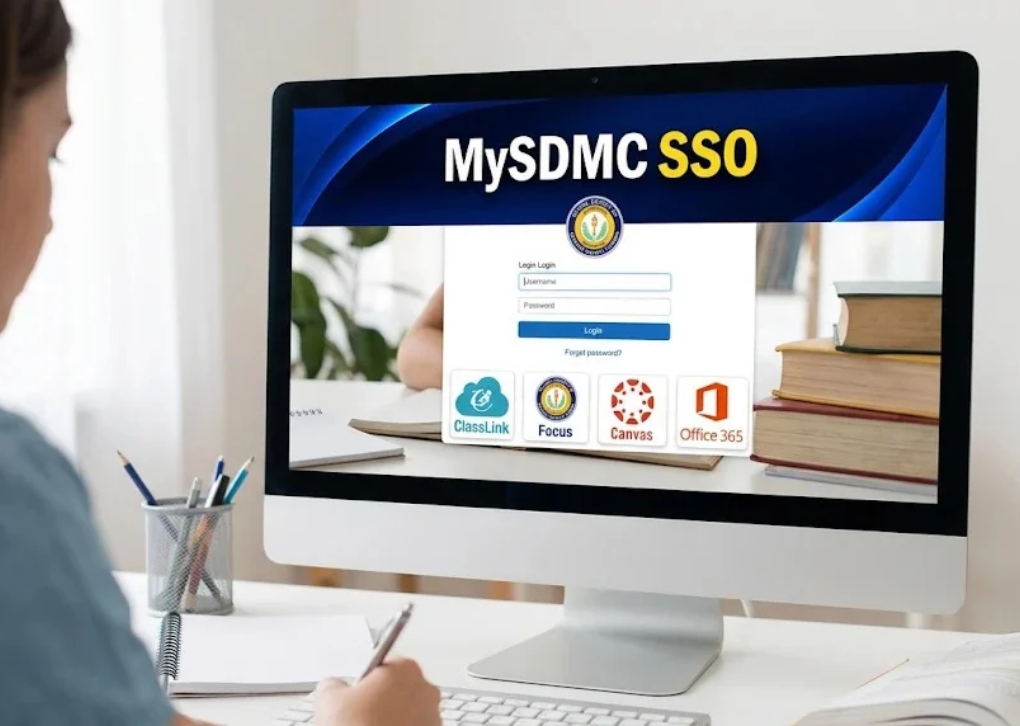
Mysdmcsso is a search term commonly associated with MySDMC SSO (My School District of Manatee County Single Sign-On), the centralized digital access system used by the School District of Manatee County in Florida.
The platform gives eligible students, teachers, and district employees a convenient way to access school-related digital applications through a single sign-in process. Instead of remembering separate usernames and passwords for every educational service, users can access the applications assigned to their accounts from a centralized dashboard.
For students, this can mean easier access to learning resources and classroom tools. Teachers and employees can use their district accounts to reach authorized work applications, instructional resources, and administrative services.
Understanding how Mysdmcsso works is particularly useful for new students, parents helping children with school technology, and employees who need reliable access to district systems.
1. Understanding the MySDMC SSO Platform
The term Mysdmcsso combines the district’s MySDMC identity with SSO, an abbreviation for Single Sign-On. This technology allows an authenticated user to access multiple connected services without repeatedly entering login credentials for each application.
The School District of Manatee County identifies MySDMC SSO as a gateway to educational and employee resources. Its technology planning documents also describe ClassLink as the system used to provide seamless access to district applications.
What Is Single Sign-On Technology?
Single Sign-On is an authentication method that connects multiple applications through a centralized identity system.
Consider a student who needs to use several online resources during a school day:
- An online textbook for reading assignments.
- A mathematics learning platform.
- Microsoft Word for writing an essay.
- OneDrive for saving schoolwork.
- A classroom application for accessing learning materials.
Without centralized authentication, each application might require a separate login. With Mysdmcsso, the student can authenticate through the district’s designated portal and open supported applications from the available dashboard.
The underlying advantage is straightforward: fewer repeated logins, easier navigation, and more consistent access to approved educational resources.
Who Uses Mysdmcsso?
The platform primarily serves people associated with the School District of Manatee County.
Its main user groups include:
- Students: Access digital textbooks, classroom applications, learning platforms, and productivity tools.
- Teachers: Use assigned instructional resources and applications that support classroom activities.
- School administrators: Access authorized district systems and administrative resources.
- District employees: Reach designated workplace applications, internal information, and employee services.
Not every user necessarily sees the same dashboard. Application availability depends on the person’s district account, assigned permissions, and role.
2. Mysdmcsso Login: How to Access the Official Portal
The most important step when using Mysdmcsso is identifying the correct login destination. Search results may contain third-party articles, outdated instructions, and websites that are not operated by the school district.
For Manatee County users, the district’s documented ClassLink access address is:
Official district-associated login
MySDMC SSO / ClassLink
Open the MySDMC SSO login portal
ClassLink LaunchPad for the School District of Manatee County.
The district’s published student-at-home technology instructions also document an older MySDMC address. The current ClassLink entry above is the more useful starting point for users looking for the district’s centralized login.
Step-by-Step Mysdmcsso Login Instructions
Follow these steps to access your district account.
Step 1: Open a trusted browser
Use an updated browser such as Google Chrome, Microsoft Edge, Safari, or Firefox. A current browser helps prevent compatibility issues with authentication pages and connected educational applications.
Step 2: Visit the official login page
Open the district-associated ClassLink LaunchPad address. Check the website address before entering any personal information.
Step 3: Select the appropriate sign-in option
Follow the authentication instructions displayed on the portal. Depending on the available configuration, you may see a username-and-password form or another district-approved sign-in method.
Step 4: Enter your district credentials
Use the username and password issued or authorized by your school or district. Students should not substitute personal email credentials unless the district specifically instructs them to do so.
Step 5: Open your application dashboard
After successful authentication, the portal should display the applications assigned to your account.
Step 6: Select the required application
Click the appropriate application tile to launch the service. Some applications may open in another browser tab, while others may complete authentication automatically.
Step 7: Check that your work is saved
When using productivity applications, verify that documents are saved to the appropriate school-approved storage location.
This final step matters. A successful login does not automatically mean that your schoolwork has been saved.
What Information Do You Need Before Logging In?
Prepare the following:
- Your district-issued username.
- Your district password.
- A supported internet-connected device.
- An updated web browser.
- Any additional authentication method required by your district.
If you are unsure about your username or password, contact your teacher or school technology support team instead of repeatedly guessing credentials.
3. Key Features and Benefits of Mysdmcsso
The usefulness of Mysdmcsso extends beyond providing a convenient login page. Its real value comes from bringing multiple digital services into one organized access point.
Here are the most important benefits.
3.1 Centralized Application Access
A centralized dashboard reduces the need to remember individual application addresses.
Students can open available learning resources from one location rather than searching for each website independently. This is especially useful during lessons when students need to switch between reading materials, assignments, and productivity tools.
3.2 Access to Educational Resources
The district’s published technology guide describes MySDMC SSO as a gateway to online textbooks, reading programs, and Microsoft Office 365.
Depending on account permissions, users may encounter resources such as:
- Online textbooks.
- Reading and mathematics programs.
- Science curriculum resources.
- Schoology.
- Lexia.
- Microsoft Office 365.
- Other district-assigned learning applications.
These examples should not be interpreted as a guarantee that every application is available to every student.
3.3 Microsoft Office 365 Integration
Microsoft Office 365 is particularly valuable for students who regularly complete digital assignments.
The district’s home-access guide explains that students can use online versions of Word, Excel, and PowerPoint without installing the desktop software. It also recommends saving schoolwork to OneDrive so files can be accessed from different computers.
This creates several practical advantages:
- Students can prepare written assignments.
- Teachers and students can work with spreadsheets.
- Presentations can be created for classroom projects.
- Files can be accessed from compatible devices.
- Cloud storage reduces dependence on a single computer.
3.4 Easier Navigation Between Applications
Switching between educational applications can interrupt concentration, particularly when students are completing several assignments.
A single dashboard provides a consistent starting point. Students can return to their available application tiles rather than repeatedly searching for individual services.
3.5 Better Organization for Schoolwork
A well-organized digital environment makes it easier to establish productive study habits.
Students can develop a simple routine:
- Sign in to the district portal.
- Check the applications required for the day’s lessons.
- Open the appropriate learning resource.
- Complete the assignment.
- Save the work in the approved location.
- Close unnecessary applications.
The platform does not replace good study habits, but it can make the digital side of those habits easier to manage.
4. Mysdmcsso for Students: Learning and Academic Productivity
Students are among the most important users of the MySDMC digital environment.
Modern classroom activities often require more than textbooks and paper worksheets. Students may need online reading materials, digital assignments, research resources, and presentation software.
Mysdmcsso helps bring these resources together through a centralized application dashboard.
Accessing Digital Textbooks
Students may use the available application tiles to reach online textbook platforms assigned by their school.
These resources can make it easier to:
- Review lessons outside classroom hours.
- Find specific chapters.
- Revisit explanations before examinations.
- Complete assigned reading activities.
- Study using a home computer.
Using Schoology and Learning Applications
Schoology is one example of a classroom platform that may be accessed through a district application tile when assigned.
Students should check their dashboard for the relevant application. If it is missing, they should ask their teacher whether they have been enrolled or granted access.
A missing application does not necessarily indicate a login failure.
Completing Assignments With Microsoft Tools
Students can use Microsoft Word for essays, Excel for calculations and data organization, and PowerPoint for presentations.
Saving documents to OneDrive is particularly useful when students move between school and home computers.
Practical tip: Use descriptive filenames, such as Biology_Chapter_3_Notes, instead of generic names such as Document1. Organized filenames make it easier to locate assignments later.
5. Mysdmcsso for Teachers and District Employees
The platform is not exclusively a student resource. Teachers and other authorized district employees also benefit from centralized application access.
Teachers often work across multiple digital systems during the school day. These may include instructional resources, communication platforms, employee information systems, and administrative applications.
Classroom and Instructional Resources
Depending on their permissions, teachers may use the portal to access:
- Curriculum resources.
- Digital learning materials.
- Classroom applications.
- Microsoft productivity tools.
- Professional learning resources.
The district’s Professional Learning department specifically directs SDMC employees to use MySDMC SSO and select the SDMC Intranet tile to reach professional development information.
Employee Administrative Services
The portal can also provide access to employee-related resources.
For example, the district’s employee benefits documentation instructs active employees to log into MySDMC SSO and select the PeopleSoft ESS tile for relevant employee services.
The district’s benefits information also directs active employees to the SDMC Intranet tile for additional benefits resources.
These examples demonstrate that Mysdmcsso functions as more than a student learning gateway. It also supports administrative workflows across the district.
6. Mysdmcsso vs. MySDMC Focus: Understanding the Difference
One common source of confusion among parents and students is the difference between MySDMC SSO and the MySDMC Focus application.
Although both are associated with the School District of Manatee County, they serve different purposes.
What Is MySDMC Focus?
MySDMC Focus is a student information and communication platform that provides authorized users with access to important academic information.
According to the district, the application allows parents, students, and staff to access information such as:
- Student attendance.
- Grades.
- Assignments and due dates.
- School notifications.
Parents need an active FOCUS Parent Portal account issued by the district to access protected student information.
MySDMC SSO vs. MySDMC Focus
| Feature | MySDMC SSO | MySDMC Focus |
|---|---|---|
| Main purpose | Application access | Student information |
| Primary users | Students and employees | Parents, students, and staff |
| Learning applications | Yes, when assigned | Not its primary purpose |
| Attendance information | Not its primary purpose | Yes |
| Student grades | Through assigned applications, where available | Yes |
| Assignments | Through learning applications | Yes |
| Parent-specific access | Not a substitute for a parent account | FOCUS Parent Portal |
The easiest way to remember the difference is:
- MySDMC SSO is the gateway to connected digital applications.
- MySDMC Focus is the platform for viewing relevant student information.
Parents should not assume that their child’s student SSO password will automatically work with their own FOCUS Parent Portal account.
Can Parents Use Both Platforms?
Yes. Parents may use the FOCUS Parent Portal to monitor academic information while students use MySDMC SSO to access assigned educational applications.
The district also provides the MySDMC Focus mobile application through the Apple App Store and Google Play.
7. How to Access Mysdmcsso From Home
Students do not necessarily need to be physically present at school to use their assigned digital learning resources.
The district has published instructions specifically addressing student access from home computers.
According to its technology guide, students can use the same username and password they use on school computers to access MySDMC SSO remotely. The guide also mentions the ClassLink OneClick browser extension for the recommended home-browser experience.
Home Login Instructions
- Connect your computer to a reliable internet connection.
- Open an updated browser.
- Navigate to the official MySDMC SSO portal.
- Enter your school-issued credentials.
- Wait for your application dashboard to load.
- Select the educational resource you need.
- Save your work to the appropriate school-approved storage service.
Can You Use a Personal Laptop?
Yes, students can use compatible home computers to access supported district resources.
A personal laptop or desktop computer can be useful for completing longer assignments, creating presentations, and working with spreadsheets.
However, certain applications may have device-specific requirements. Follow your school’s instructions before installing browser extensions or additional software.
Can You Use a Smartphone or Tablet?
Some district services support mobile access, but the experience can differ between applications.
A smartphone is useful for checking notifications and accessing certain school resources. A tablet may provide a more comfortable experience for reading and reviewing assignments.
For complex schoolwork, a laptop or desktop computer is generally more practical because of its larger screen and physical keyboard.
8. Troubleshooting Common Mysdmcsso Login Problems
Even a properly configured school portal can occasionally experience technical problems.
The important thing is to identify whether the issue involves authentication, the browser, the internet connection, or an individual application.
Here are common problems and practical solutions.
Problem 1: Incorrect Username or Password
(Common login issue)
An incorrect username or password is one of the first things to investigate when Mysdmcsso refuses to authenticate an account.
Possible causes:
- Typographical errors.
- Incorrect capitalization.
- An outdated saved password.
- An account that has been disabled or locked.
- Confusion between personal and district credentials.
Recommended solution:
Carefully re-enter your district-issued credentials. Check the keyboard language, Caps Lock setting, and any automatically filled password.
If the credentials still fail, contact your teacher or school technology support team to verify your account.
Problem 2: The Login Page Will Not Load
Sometimes the authentication page remains blank or displays an error.
Try the following:
- Check whether your internet connection is working.
- Refresh the browser page.
- Open the portal in another supported browser.
- Temporarily disable problematic browser extensions.
- Clear the browser cache if necessary.
- Try again after a short interval.
If the problem affects multiple users, it may be a district-side service issue rather than a problem with your device.
Problem 3: The Dashboard Opens but Applications Are Missing
This problem is different from a failed login.
Your account may authenticate successfully even when a particular application is not visible.
Possible explanations include:
- The application has not been assigned to your account.
- Your school or grade level does not use that resource.
- Your teacher has not enrolled you in the relevant course.
- The application is available through another section of the dashboard.
What should you do?
Check the available application library, if your dashboard provides one. If the resource is still missing, ask your teacher or district support team whether your account has the required permissions.
Creating a new account is unlikely to solve an application-assignment problem.
Problem 4: An Application Opens but Does Not Work
Sometimes the Mysdmcsso dashboard works perfectly, but a connected educational service displays an error.
To identify the problem:
- Open another application from the dashboard.
- Check whether the affected service is experiencing an outage.
- Refresh the application.
- Sign out and authenticate again.
- Check whether the application requires additional permissions.
If other applications work normally, the problem may be isolated to the specific service.
Problem 5: Automatic Login Is Not Working
Some applications use browser-based authentication to recognize an existing district session.
If automatic sign-in fails, try closing the affected application and reopening it from the official dashboard.
Also check whether your browser is blocking cookies or other authentication-related features required by the application.
Avoid changing advanced browser security settings without guidance from district technology support.
Problem 6: You Cannot Access Your Account From Home
If login works at school but not at home, investigate the differences between the two environments.
Check:
- Whether you are using the correct district portal.
- Whether your home internet connection is stable.
- Whether your browser is updated.
- Whether saved credentials are outdated.
- Whether the device meets the application’s requirements.
If the problem persists, provide your school’s support team with the exact error message and the device and browser you are using.
9. Is Mysdmcsso Safe? Understanding Account Security and Privacy
School accounts can provide access to sensitive information, making responsible account management essential.
Mysdmcsso should be accessed through the district’s recognized login route, rather than through unrelated websites claiming to provide the same service.
Although single sign-on can simplify authentication, it also makes protecting the main account particularly important.
Important Security Practices
1. Protect your password
Never share your district password with classmates, strangers, or people claiming to provide unofficial technical support.
2. Verify the website address
Before entering your credentials, check that you are using the district-associated ClassLink portal.
3. Avoid suspicious links
Do not enter your school credentials into websites reached through unexpected emails, advertisements, or unfamiliar messages.
4. Use trusted devices
Whenever possible, access your account using a personal or school-managed device that has appropriate security updates.
5. Sign out of shared computers
If you use a library computer or another shared device, sign out when finished and close the browser session.
6. Keep your credentials private
Do not save your password on public computers or share screenshots containing sensitive account information.
What Should You Do if You Suspect Unauthorized Access?
If you believe someone else has accessed your account:
- Stop using any suspicious login page.
- Contact your teacher or district technology support.
- Follow the district’s instructions for securing or resetting your account.
- Review any available account activity or security notifications.
- Report suspicious messages or unexpected authentication requests.
It is important not to assume that a centralized login system automatically prevents every security threat. Good password practices and responsible browsing remain essential.
10. Practical Tips for Getting the Most Out of Mysdmcsso
Knowing how to log in is only the first step. Developing a consistent routine can make the platform more useful for everyday academic and professional activities.
For Students
- Bookmark the verified district login page.
- Use descriptive filenames for assignments.
- Save documents to approved cloud storage.
- Check assignment deadlines regularly.
- Keep your district password confidential.
- Ask your teacher about applications you cannot find.
For Parents
- Maintain an active FOCUS Parent Portal account.
- Use the official MySDMC Focus app for supported student information.
- Check grades and attendance regularly.
- Review upcoming assignments with your child.
- Keep your contact information current in the district’s parent portal.
For Teachers and Employees
- Bookmark the official portal.
- Learn where frequently used applications appear.
- Use approved district storage and productivity services.
- Follow district policies for handling student information.
- Report access problems through the appropriate technology support channel.
These small practices reduce avoidable technical problems and help users spend more time on learning and essential school activities.
11. The Role of Mysdmcsso in Modern Digital Education
Centralized school technology platforms are increasingly important because educational institutions rely on multiple digital services.
A student may use one application for mathematics, another for reading, and a separate platform for classroom assignments. Teachers may need additional tools for instructional planning, professional development, and administrative work.
Managing all these resources independently can become complicated.
Mysdmcsso addresses part of this challenge by providing a centralized access point for assigned applications. The district’s technology strategy has explicitly identified seamless access to applications through MySDMC Single Sign-On and ClassLink as a technology objective.
Why Centralized Access Matters
There are three particularly important advantages.
Reduced login friction: Users spend less time repeatedly entering credentials into connected applications.
More consistent access: A centralized dashboard gives users a familiar starting point for their digital school activities.
Simplified resource discovery: Assigned applications are easier to locate when they are presented in one organized environment.
However, centralized access is not a replacement for teacher guidance, technical support, or appropriate digital literacy education.
Students still need to understand how to use learning applications responsibly, recognize suspicious websites, protect their passwords, and save their assignments correctly.
That combination of technology and responsible usage is what makes a school digital environment genuinely effective.
12. Frequently Asked Questions About Mysdmcsso
Below are answers to common questions students, parents, teachers, and employees may have about the platform.
1. What is Mysdmcsso used for?
Mysdmcsso refers to the MySDMC Single Sign-On access system associated with the School District of Manatee County in Florida.
It allows eligible students and employees to access assigned educational and administrative applications through a centralized dashboard. Depending on account permissions, these resources may include online textbooks, Microsoft Office 365, reading programs, and other classroom tools.
2. How do I log into Mysdmcsso?
Visit the district-associated ClassLink login page at:
https://launchpad.classlink.com/manateeschools
Follow the displayed sign-in instructions and enter your district-issued credentials when requested. After authentication, select the application you want to use from your dashboard.
If you cannot log in, contact your school or district technology support team.
3. Can parents use Mysdmcsso to check their children’s grades?
Parents should primarily use the MySDMC Focus Parent Portal to access protected student information.
The FOCUS platform provides access to grades, attendance, assignments, and school notifications. Parents must have an active parent account issued by the School District of Manatee County.
The MySDMC Focus mobile application is also available for supported Apple and Android devices.
4. What should I do if Mysdmcsso is not working?
Start by checking your internet connection, browser compatibility, and login credentials.
If the login page opens but rejects your password, verify that you are using the correct district account. If you can access the dashboard but an application does not open, investigate that specific application rather than assuming the entire SSO system is unavailable.
For persistent problems, contact your school’s technology support team and provide the exact error message.
5. Can I access Mysdmcsso from home using my personal computer?
Yes. The district has published instructions for students accessing MySDMC SSO from home computers.
Students can use their school-issued usernames and passwords to access supported resources remotely. Some applications may have additional browser, extension, or device requirements.
A laptop or desktop computer is particularly useful for completing assignments, preparing presentations, and working with Microsoft Office applications.
Conclusion: Make the Most of Your MySDMC Digital Access
Mysdmcsso is an important part of the School District of Manatee County’s digital learning and employee technology environment. By bringing authorized applications together through a centralized sign-in experience, it makes accessing educational resources and workplace tools more convenient.
For students, the platform provides a starting point for reaching digital textbooks, classroom resources, and productivity applications. Teachers and employees can use their assigned access to reach instructional and administrative services, while parents can use the separate FOCUS Parent Portal to monitor important student information.
The best way to get started is simple:
- Visit the official MySDMC SSO ClassLink portal.
- Sign in using your authorized district credentials.
- Explore the applications assigned to your account.
- Bookmark the official login page for future access.
- Contact your school if you experience account or application problems.
Most importantly, protect your login credentials and use official district resources whenever accessing school information.
With the correct login details and a basic understanding of its features, users can make their digital school experience more organized, productive, and convenient.
Official Resources and Further Reading
For accurate information, prioritize resources published by the School District of Manatee County rather than relying exclusively on third-party login guides.
- MySDMC SSO: Official district-associated ClassLink portal.
- School District of Manatee County: Official district website.
- MySDMC Focus App: Official parent and student information.
- Student Technology Guide: District instructions for accessing resources at home.
- Back-to-School Information: District student and parent resources.
Editorial note: This article distinguishes verified district information from general explanations of single sign-on technology. Individual application availability, login instructions, and account permissions can change. The district’s official website should remain the final authority for current access requirements.