



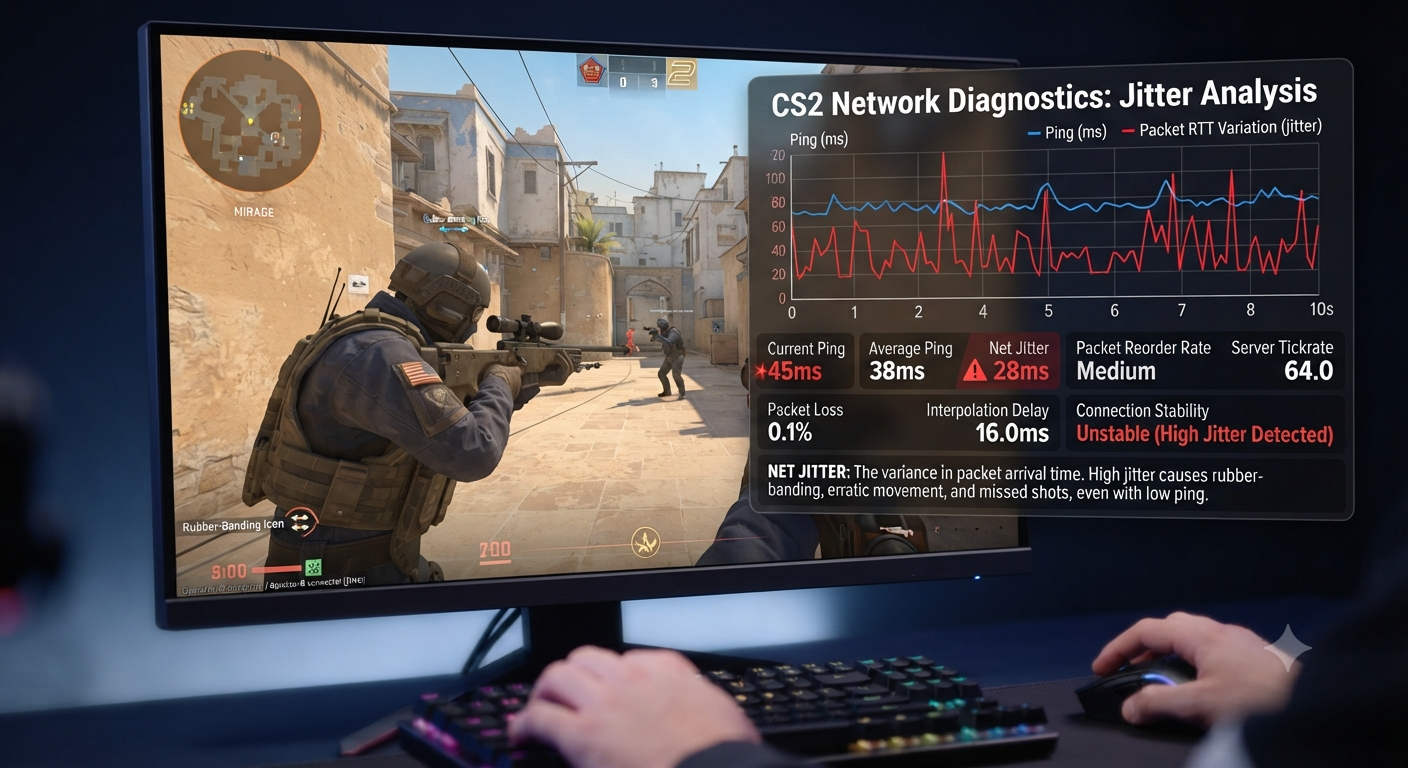
If you searched what is net jitter CS2, you are probably seeing a telemetry warning or feeling strange lag even though your ping looks normal. Net jitter means the timing between arriving network packets is inconsistent. Some updates reach your PC on time, while others arrive late or in uneven bursts.
A quick answer to what is net jitter CS2 is this: packet delivery has become uneven, not necessarily slow all the time. That matters in Counter-Strike 2 because the game constantly exchanges time-sensitive information with the server. Movement, shots, player positions, grenade events, damage, and corrections all depend on updates arriving in a predictable rhythm.
The key detail is that jitter is not the same as ping, packet loss, low FPS, or a missed server tick. Valve’s current Source 2 telemetry can display raw packet loss and peak jitter, while a separate “miss” value shows whether network disruption prevented the client from receiving simulation updates on time.
What Is Net Jitter CS2 in Simple Terms?
The easiest way to imagine what is net jitter CS2 is to think of a metronome. A decent connection will provide packets in steady intervals while a jittery connection will deliver them with uneven delays in between; sometimes it will miss a beat and send two packets right after each other.
Ping is the indicator that shows how much time passes between when your computer sends a packet and when it gets a response back. On the other hand, jitter in CS2 means large variations in the delay between packets.
In other words, there are four outcomes for your connection:
Low ping – low jitter: stable and fast connection
High ping – low jitter: slow but stable connection
Low ping – high jitter: average but unstable connection
Packet loss/tick misses: connection is interrupted enough to skip ticks in the game
This is why a 50 ms connection with no variation is better than a 15-80 ms one. Players in competitive games care about consistency more than raw speed.
Why Does Net Jitter Matter in CS2?
The answer to what is net jitter CS2 matters because CS2 must combine your inputs with information arriving from the server. When packet timing varies too much, the client may need to predict, buffer, correct, or wait for data.
Possible symptoms include:
- Enemies appearing to skip, accelerate, or teleport.
- Teammates rubber-banding.
- Sudden corrections to your position.
- Delayed-looking movement or weapon feedback.
- A match feeling choppy despite stable FPS.
- Telemetry warnings appearing during fights.
- Hit feedback feeling inconsistent with what appeared on screen.
These symptoms do not prove that every missed shot was caused by jitter. They do mean you should check telemetry instead of blaming aim, FPS, or the server without evidence.
What Is Net Jitter CS2 Compared With Ping?
Players often call every connection issue “high ping,” but ping and jitter answer different questions. Ping tells you how long a round trip to the server takes. Jitter tells you how much that timing changes from packet to packet.
Consider two connections:
- Connection A: 30, 31, 29, 32, and 30 ms.
- Connection B: 12, 65, 20, 84, and 18 ms.
Connection B may still show a playable average, but its delivery is far less predictable. That unstable spacing is the practical meaning of what is net jitter CS2.
What Is Net Jitter CS2 Compared With Packet Loss?
Packet loss means data failed to arrive. Jitter means data arrived with irregular timing, although the packets may still reach the client.
The two can happen together. Wi-Fi interference, an overloaded router, upload saturation, ISP congestion, or a poor route to the server may create jitter, loss, or both.
Valve added telemetry graphs for network jitter and packet misdelivery in the October 2, 2024 CS2 update. Valve also changed how packet misdelivery was measured, so old CS net_graph screenshots and legacy advice should not be treated as a perfect guide to current CS2 networking. o Read CS2 Network Telemetry Correctly
A complete answer to what is net jitter CS2 requires reading all telemetry values together. Valve’s current Source 2 system can show raw loss and jitter through a real-time graph or a compact numeric display.
Ping represents network latency. Lower usually feels more responsive, but a stable result is often more useful than a number that swings sharply.
Loss
Loss shows packets that did not arrive successfully. Repeated or sustained loss is more concerning than one isolated event because the game may need to recover from missing updates.
Jitter
Jitter shows peak variation in packet timing. A spike means packet arrivals became less evenly spaced during the measurement window.
Miss
Miss is the impact indicator many players overlook. Valve explains that packet loss and significant jitter can appear while the tick miss rate remains at 0%, meaning gameplay should not necessarily be affected. ul rule is:
Jitter shows network irregularity. Miss rate shows whether that irregularity disrupted timely simulation updates.
How to Check What Is Net Jitter CS2 in the Game
To investigate what is net jitter CS2 on your own connection, use CS2’s built-in telemetry while playing online.
- Open Settings in CS2.
- Go to the Game section.
- Find the Telemetry settings.
- Enable network information and set it to remain visible.
- Join an online match and watch ping, loss, jitter, and miss together.
Valve says the network-quality information can be displayed as either a graph or raw numeric values. This is more useful than relying only on a pre-game speed test because the HUD measures the connection while CS2 is actively exchanging game traffic. roblem occurs, note what changed. If jitter spikes but miss remains at 0%, the engine may still be handling the disruption. If loss and miss rise together, the connection problem is more likely to affect gameplay.
Do Not Confuse Net Jitter With FPS Stutter
Many people searching what is net jitter CS2 are actually dealing with frame-time instability. A network issue affects server-data delivery. A frame-time issue affects how smoothly your computer renders frames.
Frame-time trouble is more likely when:
- The game hitches in an offline practice map.
- FPS drops during the stutter.
- CPU or GPU load changes sharply.
- The whole image freezes, not just other players.
- Network telemetry remains stable.
Net jitter is more likely when:
- Other players warp while your camera stays smooth.
- The issue occurs only on online servers.
- Jitter, loss, or miss spikes at the same moment.
- The problem changes by server region or time of day.
- Ethernet performs better than Wi-Fi.
Both problems can exist at once, so check rendering and networking separately.
What Causes Net Jitter in CS2?
The phrase what is net jitter CS2 leads to a definition, but the cause may exist anywhere between your PC and the server.
Wi-Fi Interference
Wi-Fi shares radio spectrum with nearby routers, Bluetooth devices, walls, and household electronics. A wireless speed test may show high bandwidth while short interference bursts still disrupt packet timing.
Upload Saturation and Bufferbloat
Cloud backups, torrents, video calls, livestreaming, file syncing, and phone uploads can fill the router’s upstream queue. Small CS2 packets then wait behind larger transfers, causing ping spikes and jitter.
Busy Home Network
Streaming TVs, cameras, consoles, phones, and other computers may compete for bandwidth, airtime, or router processing. A fast internet package does not guarantee stable packet delivery under load.
Router, Modem, or Cable Problems
Old firmware, overheating, damaged Ethernet cables, weak router hardware, or unstable modem links can produce inconsistent delivery. Browsing may still feel normal because websites are less sensitive to millisecond-level timing changes.
ISP Routing or Congestion
Packets cross multiple network hops before reaching a CS2 server. Congestion or poor routing outside your home can create jitter that graphics settings and Windows tweaks cannot repair.
Valve recommends pathping or MTR-style diagnostics to inspect latency and loss across the route. Valve also notes that loss at the first hop points toward the PC-to-router connection, where wireless links are a common cause. and Tunneling Tools
A VPN adds another route and processing layer. It may improve a poor ISP path in some cases, but it may also increase latency variation, so it should be tested rather than assumed to help.
How to Fix What Is Net Jitter CS2 Problems
When diagnosing what is net jitter CS2, start with evidence rather than copied tweaks. Fix what is net jitter CS2 issues through controlled testing. Change one variable, play on the same type of server, and compare the telemetry result.
1. Test With Ethernet
Connect your PC directly to the router using a known-good cable and disable Wi-Fi during the test. If the problem disappears, wireless interference, weak signal, airtime congestion, or the Wi-Fi adapter is the likely cause.
2. Stop Background Uploads
Pause cloud sync, torrents, streams, system updates, file transfers, and phone backups. Ask other users on the network to stop heavy activity for one match.
Uploads are especially important because a saturated upstream queue can delay the small packets CS2 needs.
3. Restart and Update Network Hardware
Restart the modem and router, then check for stable firmware from the manufacturer. Inspect cables, connectors, and wall adapters for damage or loose connections.
A restart is a diagnostic step, not proof that the hardware is healthy. If problems return frequently, the router, modem, or line may need deeper testing.
4. Use Effective Queue Management
Routers with Smart Queue Management, CAKE, FQ-CoDel, or properly configured QoS can stop large transfers from monopolizing the connection. The goal is not maximum speed-test throughput; it is stable latency while the network is busy.
Avoid blindly enabling a “gaming mode.” Poorly implemented priority settings can make performance worse.
5. Compare Servers and Times
Test another nearby server region and play at a different time. If the same setup works well in the morning but becomes unstable every evening, local or ISP congestion becomes more likely.
If only one server location is affected, routing or server-side conditions deserve attention before replacing your PC hardware.
6. Run Route Diagnostics
Use pathping on Windows or an MTR-style tool to observe latency and loss across multiple hops. Focus on problems that continue into later hops.
Valve warns that one hop showing 100% loss does not automatically indicate failure when later hops still respond, because some routers simply ignore diagnostic requests. est Without VPNs or “Ping Reducers”
Disable VPNs, proxies, traffic-shaping software, and third-party latency tools to create a clean baseline. Keep a tunneling service only when repeated tests on the same server show a clear improvement.
8. Check Drivers and Power Saving
Install a stable network-adapter driver from the motherboard, PC, or adapter manufacturer. Test aggressive adapter power-saving options one at a time, especially when the issue appears after idle periods or on Wi-Fi.
Avoid random registry packs and copied console commands. They rarely fix the physical cause of unstable packet timing.
Can CS2 Buffering Smooth Net Jitter?
When troubleshooting what is net jitter CS2, buffering deserves a careful test rather than an automatic recommendation. Another part of what is net jitter CS2 is buffering. Valve says Source 2 can add enough extra buffering to absorb random delays when connection jitter occurs frequently enough for the engine to estimate the required margin. g may improve continuity on an unstable connection, but it involves a trade-off: holding updates briefly can add delay. Treat it as protection against irregular delivery, not as a repair for bad Wi-Fi, saturated uploads, or ISP congestion.
Test the available buffering option while watching miss rate and perceived responsiveness. Keep it only when stability improves without adding an unacceptable feeling of delay.
What Is a Good Net Jitter Result in CS2?
Players asking what is net jitter CS2 often want one universal number. Valve’s telemetry guidance makes a pattern-based judgment more useful than a single cutoff.
A healthy result generally looks like this:
- Jitter stays low and does not repeatedly spike.
- Packet loss remains at or near zero.
- Miss rate remains at 0%.
- Ping stays relatively stable.
- No visible warping or correction occurs.
- Results remain consistent across several rounds.
Do not panic over one brief spike. Investigate recurring events that line up with rubber-banding, loss, or a rising miss rate. Valve’s own example shows that visible jitter can exist without gameplay impact when miss remains at 0%. n Troubleshooting Mistakes
A strong explanation of what is net jitter CS2 should also remove bad advice.
- Lowering graphics settings will not repair packet timing. It only helps when the real issue is frame time.
- More bandwidth does not automatically mean less jitter. Queue management and stability matter.
- Old CS commands may not describe current CS2 telemetry.
- One speed test is not enough. Test during the actual problem window.
- A single bad hop is not always proof of route failure.
- Every jitter spike is not responsible for a missed shot. Correlate it with loss, miss, and visible symptoms.
FAQ About What Is Net Jitter CS2
The questions below cover the most common follow-up searches related to what is net jitter CS2.
Is net jitter the same as lag in CS2?
No. “Lag” is a broad term that may refer to high ping, packet loss, jitter, low FPS, frame-time spikes, server slowdown, or input delay. Net jitter specifically means inconsistent packet-arrival timing.
Can I have net jitter with low ping?
Yes. Low average ping does not guarantee stable delivery. Your connection can look fast overall while individual packets arrive with large timing differences.
Why does CS2 show jitter but 0% miss?
The connection experienced irregular timing, but Source 2 may have buffered or recovered well enough to deliver required simulation updates on time. Valve states that significant jitter and loss can be visible while a 0% tick miss rate indicates gameplay should not be affected. changing DNS fix net jitter?
Usually not. DNS mainly resolves names when a connection is established; it normally does not control ongoing packet timing during a match. It should not be your first fix for repeated in-game jitter.
Is Ethernet guaranteed to remove jitter?
No, but it removes many wireless variables and is the best first comparison test. Jitter can still originate from the router, modem, ISP route, server, cable, or network adapter.
Conclusion: What to Do Next
The clearest answer to what is net jitter CS2 is that it describes uneven packet timing, while its real gameplay impact depends on loss, tick misses, and visible instability. Enable telemetry and watch ping, loss, jitter, and miss together during a real match.
Then test Ethernet, stop uploads, compare servers, inspect the route, and change only one variable at a time. That evidence-based process is far more effective than random launch options, outdated commands, or replacing hardware without knowing where the problem starts.