


Anyone searching for a Zosi NVR manual for ZR2323M usually needs one of two things: instructions for a ZOSI wireless recorder or setup guidance for the ZG2323M camera. The model names are easy to confuse, and using the wrong guide can lead to failed pairing, unsuitable firmware, or missing menu options.
The key finding is important. In the official ZOSI documentation reviewed for this guide, ZR2323M is not listed as the recorder model; ZOSI identifies the camera as ZG2323M or IPC-2323M, while compatible wireless recorders include models such as ZR08JP, ZR08LL, and ZR08RP.
What the Zosi NVR Manual for ZR2323M Actually Refers To
The expression
Zosi NVR manual for ZR2323M
probably combines a camera’s designation with an NVR’s description. In fact, ZOSI’s support page lists the ZR08JP security system that utilizes ZG2322M and ZG2323M cameras, whereas another distributor’s official link designates IPC-2323M as the model that can be added to ZR08JP, ZR08LL, or ZR08RP recorders.
This implies that there are different instructions and firmware updates depending on the recorder’s designation, which can be identified by the label on the device’s bottom that begins with the letters ZR. Meanwhile, the ZG2323M or IPC-2323M cameras can be spotted by their labels or, if they are not available, by the Main Menu > Information > System option on the recorder.
Camera Model versus Recorder Model
It is helpful to remember that a camera and an NVR are two distinct devices that should be treated as such. For instance, while ZG2323M/IPC-2323M is responsible for capturing the image, the ZR08JP or ZR08RP recorder is the one that archives it, displays the video stream, controls the recording, and facilitates the connection to the network via its user interface indicated in the relevant manual.
Which Official Zosi NVR Manual for ZR2323M Should You Download?
For systems containing a ZG2323M camera and a ZR08JP recorder, the most relevant official document is the ZR08JP User Manual or the newer P-Model WiFi NVR Quick Operation Guide covering ZR08JP and ZR08RP. ZOSI’s support page also confirms that the ZR08JP guide applies to ZSWNVK-J820XX and ZSWNVK-J830XX kits.
Do not choose a manual only because its product photo looks similar. The correct Zosi NVR manual for ZR2323M should be selected from the recorder’s exact model, kit code, interface, and firmware family, because menu paths and upgrade files can differ even between visually similar eight-channel wireless NVRs.
Quick Manual-Matching Checklist
Before downloading anything, verify:
- Recorder model: ZR08JP, ZR08RP, ZR08LL, or another code
- Kit code: such as ZSWNVK-J820XX or ZSWNVK-J830XX
- Camera model: ZG2323M or IPC-2323M
- Current firmware: Main Menu > Information > System
- NVR interface: compare its menu layout with official screenshots
- Region and language: choose the correct English, Spanish, French, German, Italian, Dutch, Russian, or Japanese guide where available
Zosi NVR Manual for ZR2323M: Hardware Setup
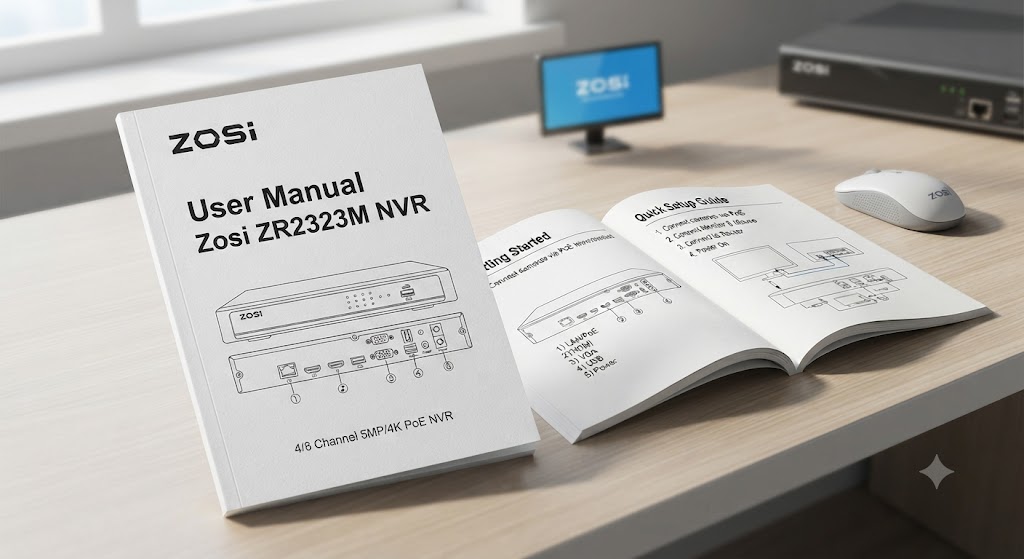
Start with the recorder on a table before permanently mounting any cameras. The official P-Model guide shows the NVR connecting to a monitor through HDMI or VGA, to a router through Ethernet, to a USB mouse, and to its supplied power adapter; it recommends testing the NVR before final installation.
The rear panel may include HDMI, VGA, audio, network, USB mouse, USB backup, antenna, and power ports. Product appearance can vary, so follow the labels printed on your unit rather than forcing a connector into a port based solely on an online picture.
Recommended Connection Order
Use this sequence from the Zosi NVR manual for ZR2323M workflow:
- Attach both NVR antennas securely.
- Connect the NVR’s network port to the router with Ethernet.
- Connect the monitor using HDMI; use VGA only when required.
- Plug the mouse into the designated USB port.
- Connect the supplied NVR power adapter.
- Power the cameras using their correct adapters.
- Confirm live video before drilling holes or routing permanent cables.
Zosi NVR Manual for ZR2323M: First Login, Password, Date, and Time
The official quick guide states that the factory username is admin and that the password may initially be blank on the covered P-Model interface. After the first login, change it through Main Menu > Setup > Users > Change Password and use at least six characters, as required by the guide.
Next, open Main Menu > Setup > Basic > Date & Time, select the correct regional time setting, and apply the change. This step is often overlooked, yet incorrect timestamps make motion alerts, evidence exports, and playback searches difficult to trust, especially when daylight-saving or timezone settings are wrong.
Security Settings to Change Immediately
A practical Zosi NVR manual for ZR2323M should go beyond basic login. Create a unique recorder password, protect the associated ZOSI Smart account, avoid reusing an email password, restrict physical access to the recorder, and keep exported footage on controlled storage rather than an unattended USB drive.
Zosi NVR Manual for ZR2323M: How to Pair the Camera
ZOSI’s official pairing instructions for IPC-2323M-compatible systems begin by powering the camera with the supplied DC 12V/1A adapter. On the NVR, open Main Menu > Information > System, then let the camera scan the QR code shown on the display; a voice prompt confirms a successful Wi-Fi connection.
After pairing, the camera should appear in live view. If the Zosi NVR manual for ZR2323M you found tells you to connect this wireless camera by BNC coaxial cable or treats it as a PoE camera, stop—those instructions likely belong to a different ZOSI product family.
When the Camera Does Not Appear
Use this troubleshooting order:
- Confirm the camera is ZG2323M/IPC-2323M, not a similar-looking incompatible model.
- Move the camera close to the NVR during pairing.
- Recheck the camera’s power adapter and status indicators.
- Open IPC Channel Configuration and look for the camera.
- Restart the NVR and camera, then repeat the QR-code process.
- Use Ethernet where supported to test whether the issue is wireless signal quality.
- Contact ZOSI with photos of both model labels and the NVR’s System Information screen.
Zosi NVR Manual for ZR2323M: Recording and Hard-Drive Checks
Playback cannot work unless the NVR has a recognized hard drive and recording is enabled. ZOSI’s recording guide supports manual recording and scheduled plans; the scheduled path is System Setup > Record Setup > Record Plan, where you select a channel, choose time, motion, or alarm recording, drag across the required periods, and apply the schedule.
The same guide lists recording priority as alarm, motion detection, manual, then time-scheduled recording. When following a Zosi NVR manual for ZR2323M, verify each channel’s schedule after saving, because copying a plan to the wrong channels or leaving unmarked time blocks can create unexpected gaps.
A Reliable Recording Plan
For most homes and small businesses, use continuous recording during high-risk hours and motion or human-detection recording during quieter periods. Then perform a real test: walk through each camera zone, wait several minutes, search the event, play it back, and confirm that the timestamp, channel, image, and audio—when supported—are correct.
Zosi NVR Manual for ZR2323M: Playback and Event Search
The official P-Model manual opens playback by right-clicking and selecting Playback, followed by Video Playback or Quick Playback. Video Playback supports time or event search, while the guide describes Quick Playback as access to the first 30 minutes of available video in its relevant window.
For a precise search, select the date, channel, and recording type, then run Search and choose the relevant timeline section. The Zosi NVR manual for ZR2323M interface may show controls for pause, frame advance, rewind, fast-forward, electronic zoom, and speed changes from 1/16x to 16x.
Playback Troubleshooting
When the timeline is empty, check four items before assuming footage was deleted: the hard drive is detected, the channel had a saved recording schedule, the NVR’s date and timezone were correct, and you selected the right record type. ZOSI specifically notes that playback requires an installed drive and enabled recording.
Zosi NVR Manual for ZR2323M: Exporting and Backing Up Video
The newer quick guide shows a dedicated USB backup port and gives this path: insert a USB drive, open Main Menu > Backup, select channels and the time period, search, choose the required clips, and apply the backup. Verify the exported file on a computer before deleting or overwriting anything.
Older ZOSI interfaces may ask you to select Video Backup first, search by channel, record mode, and time, then insert the USB drive when prompted. That difference is another reason a generic Zosi NVR manual for ZR2323M can mislead users; use the workflow that matches your actual menu.
Evidence-Handling Best Practices
Export a few minutes before and after the event, not only the visible incident. Keep the original file unchanged, make a working copy, record the camera number and exact time range, and confirm playback on a second device; these steps reduce confusion when footage must be shared with an insurer, employer, or law-enforcement contact.
Zosi NVR Manual for ZR2323M: ZOSI Smart and AVSS
For the covered ZR08JP/ZR08RP systems, ZOSI identifies ZOSI Smart as the mobile application and AVSS as the computer client. The NVR should be connected to the router through Ethernet, after which the app can be used for remote viewing and compatible playback or alert functions.
If remote access fails, test the NVR’s network status, router connection, and Internet access. ZOSI’s network guidance recommends checking the cable, enabling DHCP on the NVR and router where appropriate, applying the settings, and allowing time for the status to change online.
App Setup Problems That Look Like NVR Faults
ZOSI warns on some current wireless-system guides that spaces or unsupported special characters in a router’s Wi-Fi password can cause device-addition failures. Although interface behavior varies by model, simplifying the Wi-Fi credential temporarily can help isolate whether the issue is account configuration, networking, or the recorder itself.
Zosi NVR Manual for ZR2323M: Firmware Update Safety
Never install firmware merely because a filename contains “ZOSI,” “H.265,” or a similar-looking model number. ZOSI publishes separate files for ZR08JP and other NVRs, and official support repeatedly ties upgrade files to exact model families such as ZSWNVK-J820XX or ZSWNVK-J830XX.
Before updating, record the full model, current firmware version, launch date, and kit identifier from Main Menu > Information > System. A responsible Zosi NVR manual for ZR2323M should tell readers to confirm the file with official support when any identifier differs, because the wrong recorder firmware can prevent booting or camera pairing.
Safe Firmware Checklist
- Download only from ZOSI’s official support center.
- Match the exact NVR model and kit code.
- Read the instructions attached to that specific firmware.
- Use the recommended USB format and file location.
- Keep power stable throughout the update.
- Do not rename or unpack files unless the official instructions require it.
- Recheck Main Menu > Information > System after restarting.
Common Problems and Practical Fixes
No picture on the monitor usually points to power, cable, port, or display-resolution trouble rather than a failed camera. The official manual recommends confirming that the NVR powers on, checking or replacing the HDMI/VGA cable, and using a monitor whose minimum supported resolution is at least 720p.
Remote-access failures require a different path: verify that the NVR is networked, run the built-in network test, confirm another device can access the Internet on the same network, and reboot the recorder or router. These checks are more useful than repeatedly deleting and reinstalling the app.
Symptom-to-Fix Reference
- Camera offline: check camera power, distance, pairing, and IPC Channel Configuration.
- NVR offline: test Ethernet, DHCP, router access, and Network Test.
- No recordings: check hard-drive status and the saved Record Plan.
- Wrong event time: correct timezone, date, and daylight-saving settings.
- USB export fails: try a compatible drive, another USB port, and a shorter time range.
- App cannot add device: confirm the correct app, account, network status, QR code, and Wi-Fi credential format.
- Menus do not match the guide: verify the recorder model and firmware before proceeding.
FAQ About the Zosi NVR Manual for ZR2323M
The questions below address the search intent behind Zosi NVR manual for ZR2323M, including model identification, camera compatibility, recording, mobile access, and firmware safety. The exact menu wording can vary, so always compare these steps with the System Information screen and the official guide for your recorder.
The safest rule is simple: treat ZG2323M/IPC-2323M as the camera identifier and identify the NVR separately. Once you know whether the recorder is ZR08JP, ZR08RP, ZR08LL, or another model, the correct manual and troubleshooting path become much clearer.
Is ZR2323M a ZOSI NVR model?
The official pages reviewed do not identify ZR2323M as the recorder model. They identify ZG2323M or IPC-2323M as the camera, while compatible NVRs include ZR08JP, ZR08LL, and ZR08RP; confirm both stickers before downloading a manual or firmware.
What manual should I use for a ZG2323M camera system?
Use the manual for the NVR connected to the camera. For a ZR08JP or ZR08RP recorder, ZOSI provides a P-Model WiFi NVR guide, while the ZR08JP support page also provides a system-specific manual for kits such as ZSWNVK-J820XX and ZSWNVK-J830XX.
How do I add the ZG2323M camera to the NVR?
Power the camera with its supplied 12V/1A adapter, open Main Menu > Information > System on the compatible NVR, and let the camera scan the displayed QR code. Wait for the successful Wi-Fi voice prompt, then confirm that the channel appears in live view.
Why does my ZOSI NVR show no recorded video?
The most common causes are an unrecognized or missing hard drive, disabled recording, an incomplete schedule, the wrong date/channel filter, or incorrect system time. ZOSI states that a hard drive must be installed and recording enabled before playback can return footage.
Can I use any ZOSI firmware on this system?
No. Firmware must match the recorder’s exact model and hardware family. Check Main Menu > Information > System, compare the model and current version with the official download page, and contact ZOSI support rather than guessing when the code does not match exactly.
Final Steps
Use this Zosi NVR manual for ZR2323M as a decision guide, not as permission to assume the model. First photograph the recorder and camera labels, then open System Information, download the official manual for the recorder, change the default login, correct the time, confirm the hard drive, test recording, test playback, and export a sample clip.
The correct Zosi NVR manual for ZR2323M begins with accurate model identification. Only after confirming whether your recorder is ZR08JP, ZR08RP, ZR08LL, or another ZR model should you mount cameras permanently or install firmware, because that model determines the correct interface instructions, pairing process, and safe upgrade file.